A bright highlight in an HDR movie can sit beside a surprisingly dull white spreadsheet. Replacing the monitor would be a costly first experiment. Windows can present standard dynamic range content and HDR content differently on the same display, and the balance between them has its own setting.
Start with a known pair of windows
Put an ordinary document with a white page beside a familiar HDR image or video. Keep both on the display you are adjusting. Open Settings, System, Display, select that display, and open its HDR settings. Note the original values. Microsoft’s HDR settings guide distinguishes the controls used on built-in and external HDR displays. The label and effect of the brightness control depend on which type you have.
Change the relevant content-brightness balance by a small amount. Return to the document and check its white page, gray grid lines and small black text. Then look at the video again. Moving a window between the laptop and an external screen is a different experiment, because the screens may have different capabilities and settings.
Choose the setting for the work
For an afternoon of invoices, compare the same sheet in SDR with HDR turned off on that screen. For a video review, turn HDR back on and judge with the actual HDR material. If one application still looks unusually dark, close and reopen it after the change before altering another setting.
Keep a note of the display name and the value that worked, particularly if the desk also has a dock or a projector. This adjustment is about readable day-to-day brightness. Colour-critical editing calls for a properly configured display and a separate calibration workflow.
A screen set to 120 Hz can refresh up to 120 times each second. That can make the pointer, scrolling text and moving content look smoother. A budget spreadsheet left on the same row gains little from all those extra refresh opportunities. The choice depends on what moves during your day and whether you are close to a power outlet.
Compare the same motion on the same panel
In Windows 11, go to Settings, System, Display, Advanced display. If two screens are attached, select the one you want to evaluate. Write down its current resolution and refresh rate. Choose another supported rate at the same resolution if one is offered. Microsoft’s refresh-rate instructions explain the available choices, including cases where selecting a different rate also changes resolution.
Scroll a long document with the touchpad at a comfortable reading speed. Then stop and read a paragraph. If the improvement you care about appears only while scrolling, you have learned when the higher setting earns its keep. Do a second pass with the application you use for animation, drawing or games. A panel’s refresh rate alone cannot promise that an application will generate a new frame each time.
Pick a travel setting
On a compatible Windows 11 laptop, Dynamic Refresh Rate lets the system adjust the rate to the activity. If the control is absent, check the panel and driver requirements in Microsoft’s guide before spending time searching for it. A fixed lower rate is another option for a train journey. If you compare battery use, keep brightness and workload similar across the two runs. Report the result for that laptop and task rather than attaching a universal number of extra hours to either setting.
A folder full of familiar filenames can be a poor packing list. With OneDrive Files On-Demand, File Explorer can show a document that has never been downloaded to the laptop. At the office the distinction is almost invisible: double-click the file, wait a moment and it opens. On a train without a connection, the same double-click can leave you looking at the filename instead of the document. Before travelling, check the status of the files your task depends on and rehearse the task once offline.
Read the status beside the file
Open the synced folder in File Explorer and look at its Status column. A blue cloud indicates an online-only file. A green outlined check identifies a locally available file, such as one you have already opened. A solid green circle with a white check identifies an item marked to stay on the device. Microsoft illustrates these states in its Windows Files On-Demand guide. If you want the local copy to be retained, use the explicit keep option. Opening a document once during a meeting is a weaker preparation for a trip weeks later.
Pack the materials for one task
Suppose you will present a pricing proposal. Start with the slide deck, then list what you actually open while presenting it. There may be a separate PDF containing the signed specification, a video linked from a slide, and a workbook you use to answer questions. Selecting the deck alone will not download these other items simply because you intend to use them together. Identify where each dependency lives. A video on a streaming website needs its own offline arrangement if the service and your permissions allow it.
For files in the synced folder, right-click the file or its containing folder and select Always keep on this device. Do this while the laptop has a reliable connection and enough free storage. Wait for the downloads to finish. A compact project folder is generally easier to inspect than a whole departmental library. Microsoft also documents the keep option for synced SharePoint folders, which matters when a colleague originally shared the material through a team site.
Rehearse with the network disconnected
Close the presentation and its supporting applications. Disconnect Wi-Fi and any wired connection, then open the deck from File Explorer. Start the slideshow, follow the links you intend to use, play the clip, and open the workbook. This catches two different problems: an item might still be online-only, or a slide might point to a web address even though you have a downloaded copy elsewhere. Note exactly which action fails before reconnecting. Downloading the deck again will not repair a link that still points to the web.
For collaborative work, also check what you need to do with the result. Being able to read a local copy establishes that the material is available. Delivering edits to a colleague requires a connection later. After reconnecting, allow synchronisation to finish and check that the expected version reached the shared location before calling the handoff complete.
Recover the space after the trip
If you only needed the files for a meeting, check that your changes have synchronised, then use OneDrive’s Free up space command on the relevant items. This lets the cloud copy remain in the library while releasing local storage. Deleting files from a synced folder has a different effect and can propagate the deletion. For your next trip, the most useful item to keep may be the short checklist of dependencies that passed your offline rehearsal.
A new 14-inch laptop can make a spreadsheet look beautifully crisp and uncomfortably small at the same time. Lowering the resolution certainly makes things larger, but fine strokes may soften across the entire screen. For an everyday Windows workspace, start with the recommended resolution and adjust how large the interface is drawn. If only one document is difficult to read, start inside that application.
Find the smallest change that solves the problem
Open Settings, System, Display. When a monitor is attached, select the laptop panel in the diagram before making a change. Note the existing resolution and Scale percentage so you can go back. Microsoft’s screen resolution and layout guide explains these separate controls and why the recommended resolution normally gives the clearest result. Pick the next available scale setting and open a familiar application.
What looks small?
First control to try
What else changes?
Menus, buttons and documents on this display
Windows Scale
Most of the interface gets larger
One PDF in a comfortable workspace
The reader’s zoom
Other applications keep their layout
Everything looks stretched or soft
Recommended display resolution
The panel receives a different pixel grid
Let a real task decide
Try entering figures in a workbook. Can you read the formula bar, see the row labels and still keep the total column in view? Higher scaling may improve the first two while costing you the third. Next move the same workbook onto the desk monitor. If that monitor already looks right, leave its setting alone.
For a mixed day, you may want one comfortable system scale for menus and a higher zoom only in your reading app. A small adjustment that survives the trip from desk to laptop is more useful than a desktop screenshot that looks good in isolation.
The battery icon changes to “charging” the moment you plug in the monitor. The screen stays black. Before ordering a new dock, check three items separately: the video output on the laptop, the cable, and the input you selected on the monitor. The charging indicator establishes one useful fact: power is passing over the connection. It cannot identify which of those three items is preventing video.
Start with the exact port you used
Find the port diagram for the exact laptop model. Look for a description of external display support next to the particular port, such as DisplayPort Alt Mode or Thunderbolt. If the manual lists several USB-C ports, use the diagram to match their positions. A specification for a whole product family may describe an option your configuration lacks. A photograph of the connector tells you its shape, but gives you little help determining what the manufacturer wired behind it.
VESA’s DisplayPort over USB-C help page identifies lack of DisplayPort support on the selected connector as one reason a display connection can fail. If the computer has a documented display-capable port on the other side, switch to it while keeping the cable and monitor input unchanged. A picture appearing now is a useful result: the original combination failed, and you have a working connection without buying an accessory.
Test the cable before replacing the monitor
A cable from a laptop power adapter is an easy one to reach for at a desk. Check its model or packaging before assuming it can carry a picture. Apple documents a particularly clear example: its two-metre USB-C Charge Cable supports charging and USB 2.0 data but does not carry video. The company’s comparison with its Thunderbolt 3 cable applies to the named cables. Length or colour alone will not distinguish every manufacturer’s products.
Use the monitor’s supplied video-capable USB-C cable if available, or borrow one that is already driving a comparable display. Keep using the same laptop port for this test. If you swap the port, cable, and dock together, a successful picture leaves you unable to tell which part belongs in your travel bag next time.
Select the monitor’s upstream video input
Read the labels on the monitor itself. Some USB-C connectors on a display are for accessories. Its manual identifies the upstream connector that accepts a video signal from a computer. Use that connector and explicitly select its input in the monitor’s on-screen menu. For this test, temporarily connect the laptop directly to the monitor. A dock adds another device, another connection and, in some arrangements, another power supply to investigate.
Consider a desk where HDMI produces a picture and USB-C charges the same laptop. HDMI success gives you a working fallback and shows that the panel can display an image. It leaves the monitor’s USB-C input, the selected cable and the laptop’s USB-C video output to check. Buying a replacement screen at this point would act on the least specific evidence.
Keep the result you can reproduce
Once a picture appears, check the resolution and refresh rate in display settings. Record the laptop port, the cable model or identifying mark, the monitor input and the working display mode. If you depend on the setup for presentations, disconnect it and reconnect it once with the same parts. That small test gives you something more useful than a drawer full of USB-C cables: an identified combination you can reproduce in the next meeting room.
You put a monitor to the left of your laptop, drag a spreadsheet toward it and hit a wall. Move the other way and the spreadsheet appears on the left-hand monitor. Both screens are working. Windows is arranging their desktops in a different order from the glass on your desk. The fix is to change their positions in Display settings. Changing which one is the main display solves a different problem.
Put the two rectangles where the screens actually sit
With both screens connected, open Settings, then System and Display. Choose Identify and watch for the number on each panel. If both show the same content, select Extend from the Windows key + P menu so there are two desktop areas to arrange. In the diagram, drag the numbered rectangle for the monitor to the left of the laptop rectangle. Apply the change. Microsoft’s guide to using multiple monitors shows how identification, arrangement and display mode work together.
The vertical position matters too. Imagine a tall monitor on a stand with a laptop sitting low beside it. If the two rectangles meet only along a short part of their edges, the pointer can cross there but stop higher up. Adjust the relative height in the diagram to make the crossing feel natural from the chair. You can leave the screens at their recommended resolutions.
Test with something you can afford to lose sight of
Open an empty text document. Move its title bar across the middle of the shared edge, then bring it back. Repeat near the top and bottom. A pointer that refuses to cross at one height, but crosses at another, points to the overlap in the layout. A window that appears on both displays at once points back to Duplicate mode.
Finally, disconnect and reconnect the setup you actually use, including the dock if there is one. Check the crossing once more before arranging your real work. This small rehearsal matters at a hotel desk where the monitor may sit on the opposite side from the one in your office.
A Windows laptop that shows 100 percent after charging can still have less usable battery capacity than it did when new. The percentage on the taskbar describes how full the battery is relative to its current charging limit. To investigate a secondhand laptop or a machine that now needs charging before lunch, compare the battery’s reported full charge capacity with its design capacity. The comparison answers a narrower and more useful question: how much energy can this particular battery store relative to the amount it was designed to store?
Find the two figures for the same battery
Open Command Prompt as administrator on the laptop you want to check. Enter powercfg /batteryreport and read the output location printed by Windows. Open that HTML file in a browser and find the Installed batteries section. Record the battery name, the report date, Design capacity and Full charge capacity. Keep the original units next to both figures. Microsoft describes the report and its sections in Caring for your battery in Windows.
Use the two figures from the same battery entry. A specification sheet for a product family might list two battery options, and a replacement pack may differ from the one originally shipped. If the report leaves a value blank, leave the result unknown. Treating a missing value as zero would turn an incomplete reading into a false diagnosis.
Work through an example
Suppose the report lists a design capacity of 60,000 mWh and a full charge capacity of 48,000 mWh. Divide 48,000 by 60,000 and multiply by 100. The result is 80 percent of design capacity. The difference is 12,000 mWh, or 12 Wh. These are illustrative numbers. The calculation uses the method Microsoft also documents in its Surface battery capacity guidance. That page describes a Surface-specific tool, while the arithmetic can be applied to a battery report when both inputs are available.
Write the result as “48 Wh full charge capacity against a 60 Wh design figure.” That wording makes the observation easier to revisit than “battery at 80 percent.” Someone reading the latter could reasonably think the laptop had simply been unplugged before it finished charging.
Separate storage capacity from a short afternoon
Capacity alone cannot tell you how many hours a particular meeting will last. Consider two hypothetical workloads on the same 48 Wh battery. At a steady average draw of 8 W, dividing energy by power gives six hours. At 16 W, the same calculation gives three. Both examples assume all the stated energy can be used and power draw stays constant. Real workloads vary. The example illustrates why a change from offline document editing to a long camera-on call can matter even when the reported capacity barely changes.
Use the result in a purchase or repair decision
For a used laptop, ask for a recent report from the actual unit and compare its two capacity figures. Then ask to run a short version of your own workload with the machine unplugged. Keep screen brightness and power settings consistent when comparing units. A brief demonstration can reveal whether the intended applications run properly on battery, although it cannot establish full-day endurance.
For a laptop you already own, keep a dated copy of the report. If the next report shows similar capacity while your workday has shortened, compare the applications, display settings and meeting schedule on those days. If successive reports show a sustained drop and the laptop no longer covers your normal working session, the figures give the manufacturer or repair provider a concrete starting point. Share the battery figures and symptoms; the entire report may contain device identifiers you have no reason to send.
Picture the desk five minutes before a client meeting. The projector has an HDMI cable, the room camera has a USB-A plug, and your laptop needs power for a two-hour workshop. You need three connections at once. A laptop advertised with three ports can still leave one of those plugs in your hand. The way to count is to give each device a place on a sketch of your own laptop, including the charger.
Draw the occupied ports first
Write down the exact model and open its port diagram. Mark the port you normally use for power. Next, trace a path from the projector cable to the computer. If that path includes a USB-C to HDMI adapter, cross out the USB-C socket it occupies. Then place the camera or the receiver for your presentation remote. Count any sockets that are still physically accessible with the adapters fitted. A wide adapter can cover a neighbouring socket that looks free on paper.
This exercise can change how you read a specification sheet. On a MacBook Air model equipped with MagSafe 3, using the MagSafe charging cable leaves the Thunderbolt ports available. If you pack a USB-C charging cable instead, allocate a Thunderbolt port to it. The laptop is identical in both sketches. The contents of the bag change the result. Check the diagram for the generation you own in Apple’s MacBook Air technical specifications.
Compare three ways to connect the same room
What you bring
Where the plugs go
What to check before leaving
Laptop with HDMI and USB-A
Projector into HDMI, camera into USB-A, charger into its usual socket
Can all three plugs sit side by side?
Single-purpose HDMI adapter
Projector through a display-capable laptop port, charger and camera through other available connections
Is there a compatible socket left for the camera after connecting power?
Multiport adapter with charging input
Projector and camera into the adapter, charger into its marked power input, adapter into the laptop
Does this adapter support the required display mode, USB accessory and charging together?
For the third setup, read the adapter’s diagram as carefully as the laptop’s. A USB-C socket marked for incoming power may be exactly where the charger belongs. Its presence alone does not tell you that a camera or second display will work there. For the host connection, look up the display capability of the particular laptop port. VESA’s guide to DisplayPort over USB-C explains how compatible equipment carries a display signal through this connector.
Rehearse with the camera running
Open the actual slide deck and connect a second screen. Start a test call, select the external camera, then plug in the charger you plan to carry. Look at the second screen while moving through several slides. Check the camera preview and the laptop’s power indicator with everything connected. Testing each accessory separately misses the very problem this rehearsal is designed to find: two accessories may depend on the same physical socket.
If you rarely use a room camera, make two packing lists. The first can be as short as the charger, the display adapter and the laptop. The second adds the known-working camera connection for hybrid workshops. Label the adapter you actually tried. Before the next trip, a host who can answer “What plug is on the projector cable, and what plug is on the room camera?” has given you more actionable information than a room description that simply says “USB-C available.”
Every laptop in this guide weighs 1.50 kg (3.31 lb) or less on its own. For a day of client visits, count the charger and any adapter you’ll carry, too.
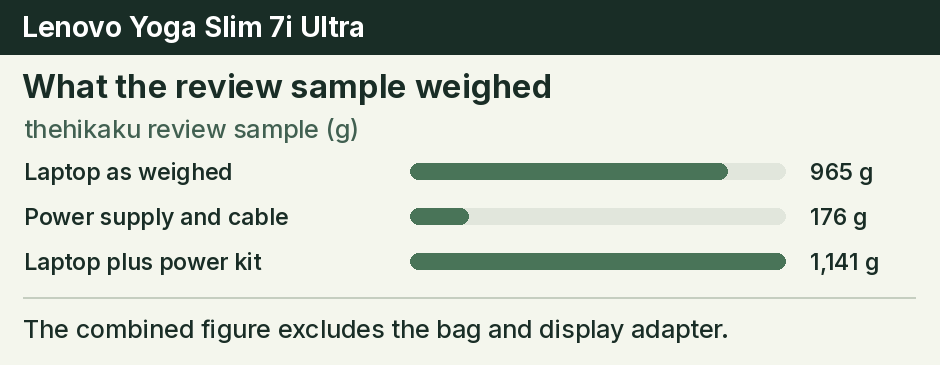
For walking between offices with USB-C displays, the 14-inch Lenovo Yoga Slim 7i Ultra Aura Edition pairs a touchscreen with a light travel kit. Two reviews measured the Core Ultra 7 355 model at 1,141 g and 1,155 g with its charger. An HDMI-only meeting room adds an adapter to the bag. the比較 · Notebookcheck
These are Notebookcheck’s weights in grams for the machines and chargers it reviewed. It didn’t give a charger weight for the Surface.
The Dell XPS 14 and ThinkPad E14 show how much the separate power kit can change a close comparison. Their reviewed laptops differ by 51g on their own (1,455g versus 1,404g). The reviewed pairs differ by 123g (1,836g versus 1,713g). That makes 72g of the packed difference attributable to the two power kits in these measurements. Someone who can leave an approved charger at both offices should cross out that 72g when comparing what goes back and forth.
Lenovo says this Yoga starts at 975 g. Two reviewers weighed a configuration with a Core Ultra 7 355, 32 GB of memory and a 1 TB drive. Japan’s the比較 got 965 g for the laptop and 176 g for the power supply and cable. Notebookcheck got 978 g and 177 g. In Notebookcheck’s figures the Yoga and charger come in 77 g under the Dynabook and charger. A hub heavier than 77 g can reverse the order. See what goes in each bag. Lenovo · the比較 · Yoga measurements · Dynabook measurements
Which Yoga configuration fits client work?
The 32 GB version gives you room to keep a presentation, reference documents and a video call open together. The memory is soldered in, so make that choice when you buy. The 14-inch, 2880 × 1800 OLED touchscreen lets you reach over and enlarge a detail while someone’s looking at the slide. Tom’s Guide noticed reflections in bright light during its week with this configuration. If your usual desk faces a window, compare the matte Dell XPS 14. Tom’s Guide · Compare US prices
Best for walking between client offices
In a meeting room with a USB-C display, any of the Yoga’s three Thunderbolt 4 ports can carry video. If your clicker uses a USB-A receiver, pack the adapter. Windows Central needed one for its own USB-A receivers. For Ethernet and HDMI without a hub, the Dynabook has both ports. For signing drawings with an active pen, see the MSI Flip. Lenovo ports and pen support · Windows Central hands-on · WIRED on the Dynabook
Andrew Marc David weighs the Yoga and shows its ports.
The X1 Carbon weighed 1,139 g on its own and 1,414 g with the charger. Look for the Core Ultra 5 325 with 32 GB of memory, a 512 GB drive and the low-power 1920 × 1200 IPS touchscreen.
Best for a long train ride before a presentation. Notebookcheck got 23 hours and 13 minutes of web browsing from the 60 Hz IPS model, the longest of the three configurations in our train comparison. At the office, you can plug the projector into HDMI and your clicker into USB-A. RTINGS also liked the keyboard for long stretches of typing.
The keyboard and ports comments from RTINGS cover a Core Ultra 7 355 IPS unit. The 23h 13m browsing figure comes from Notebookcheck’s Core Ultra 5 325 test.
ASUS Zenbook A14 UX3407NA
The A14 slips under a kilo at 992 g, or 1,240 g with the charger. This is the UX3407NA with a Snapdragon X2 Elite, 32 GB, a 1 TB drive and a 14-inch 1920 × 1200 OLED screen.
Best for giving presentations on Windows on Arm. Say you walk into a room with an HDMI projector, your clicker has a USB-A receiver, and you’re low on battery. Plug in all three. TechRadar found that port layout on this X2 Elite model, with either USB4 port available for power. Before you buy it for work, ask IT about your company VPN and any devices that need their own drivers. The Intel Yoga is an alternative if your equipment needs an x86-only driver or you use touch to present.
The Portégé is 961 g on its own and 1,232 g with its charger. WIRED reviewed the Core Ultra 7 258V version. Here you get 32 GB, a 1 TB drive and a 14-inch IPS screen without touch.
Best for client sites where you plug into the network. When someone points to an Ethernet cable and there’s no guest Wi-Fi, you can get straight to work. You still have HDMI for the projector and two USB-A ports for equipment. WIRED found the little arrow and paging keys cramped. If most of your trip involves moving around a giant spreadsheet, I’d look at the 16-inch LG as well.
What kind of desk will you have when you get there?
MacBook Air 13 M5
The Air came in at 1,230 g alone and 1,397 g with the review charger. This is the M5 with an 8-core GPU, 16 GB of memory, a 512 GB drive, MagSafe and two Thunderbolt 4 ports.
Best for quiet interviews and a two-monitor Mac desk. Set it next to a microphone and there’s no laptop fan to spin up mid-interview. Back at your desk, you can keep the lid open and connect two external displays. MagSafe handles charging and leaves both Thunderbolt ports free. RTINGS tested this entry model and saw it slow down under a long, heavy workload, something to weigh if you render video after every shoot. For a client’s HDMI projector, put a USB-C adapter in your bag.
That packed weight includes the 30 W adapter the reviewer used. Apple lists a different adapter for the U.S. model.
Surface Laptop 13 (2nd Edition)
The 13-inch Surface weighed 1,230 g. The second-edition model here has a Snapdragon X2 Plus, 16 GB, 512 GB of UFS storage and a 1920 × 1280 touchscreen.
Best for reading documents at a small train or airplane table. The short chassis leaves you some room, and the 3:2 screen shows more of a portrait page than a 1920 × 1200 screen at the same scaling. I’d appreciate that when checking the paragraph above a contract clause. Your USB-A mouse plugs straight in. For HDMI you’ll need an adapter, and for a company VPN or scanner that uses its own driver, check that it supports Arm64 before you buy.
Sixteen inches sounds like a lot to carry, but this gram weighed 1,229 g alone and 1,383 g with its charger. The 2025 configuration here pairs a Core Ultra 7 256V, 16 GB and a 1 TB drive with a matte 2560 × 1600 IPS screen.
Best for a hotel room where the laptop is your only screen. Open the expense workbook on one side and the invoice on the other. The matte finish also helps when the hotel desk faces the window. COMPUTER BILD measured 443 cd/m² on this German configuration. I’d take a smaller laptop if most of the work happened on a train table.
The Flip weighed 1,377 g on its own and 1,573 g with the charger. It has a Core Ultra X7 358H, 32 GB and a 1 TB drive. The parts that matter across a client’s desk are the 360-degree hinge and the Nano Pen that slides into the laptop.
Best for marking up a plan with a client. Fold the keyboard underneath, turn the floor plan toward them and hand over the pen. Tom’s Guide used the pen for writing and drawing and found the slim barrel fiddly to pull out. If clients mostly look at slides and pinch to zoom, I’d save the weight and take the Yoga.
The XPS makes our cutoff at 1,455 g, though the charger takes the pair to 1,836 g, the heaviest reported combination here. This one has a Core Ultra 7 355, 16 GB, a 512 GB drive and the matte 1920 × 1200 IPS display.
Best for the desk that always faces a bright window. Its refresh rate can drop to 1 Hz while you read a schedule and rise to 120 Hz as you scroll. Tom’s Hardware tested this LCD version alongside an OLED machine with a different processor, so the screen alone doesn’t explain the gap. If you’d use touch every day or spend more time carrying the laptop than sitting at it, I’d go for the Yoga.
The E14 weighed 1,404 g on its own and 1,713 g with the charger. Look for the H-series machine with a Core Ultra 7 255H, 16 GB and a 1 TB drive. This version has two memory sockets and space for two M.2 drives.
Best for field teams that keep and upgrade their laptops. Say you start with 16 GB and a year later everyone’s carrying a bigger local archive. You can add memory or fit a second SSD, and there’s built-in Ethernet for work at a client site. Japan’s the比較 installed and tested a second drive in the same H-series chassis. The V-series E14 has a different memory design. If your team never opens the case, the Dynabook is easier to carry.
Two client visits. What’s on the conference table?
I’d take the Lenovo Yoga Slim 7i Ultra if both clients use USB-C displays. You can walk in, plug in the screen and show someone a detail with your finger. Say the first client comes back with a different answer: “There’s an HDMI cable on the table.” I’d keep the Yoga and tuck a small adapter into the bag. It’s the second visit, where you also need a wired network and a USB-A receiver for the clicker, that would make me reconsider. Lenovo’s port and display specifications.
What the two bags weigh with the room’s cables supplied
The laptop-and-charger weights come from Notebookcheck’s Yoga review and Portégé review. We added the accessory makers’ listed weights. That last row is effectively a tie. In Japan, the比較 weighed a Yoga and power supply at 1,141 g. Add the same hub and you get 1,223 g, which puts the Yoga just ahead again. I’d pick the Dynabook for recurring wired-site visits because I could leave the hub at home and still plug everything in. Dynabook’s connector list · How to weigh your own travel kit.
A six-hour train ride, then a presentation
The train socket is dead, you’ve got a proposal to finish, and the client expects a demo when you arrive. I’d pack the ThinkPad X1 Carbon Gen 14 with the low-power IPS touchscreen. Its tested kit adds 259 g over the Yoga.
Wi-Fi browsing with the screen set to about 150 nits
At maximum brightness, the lab tested the same ThinkPad again. It ran for 14 h 14 min, almost nine hours less. That’s the number I’d want to know when the sun comes through the train window. Notebookcheck’s browsing test loads a different page every 30 seconds. A morning spent sharing your screen on a video call is a different workload. I’d keep the charger in the bag for that trip.
If the train takes you straight to a client’s wired network, I’d consider the Dynabook. It managed 19 hours in the same test and has Ethernet built in. Buying the X1? Here’s how to spot the tested IPS configuration. How to read laptop battery claims.
Three nights in a hotel, with the laptop as your only screen
You’ve got the supplier’s PDF quote open on the left and your costing sheet on the right. You’re looking for the freight charge that explains why the totals don’t match. Here I’d choose the 16-inch LG gram Pro, specifically the matte IPS version 16Z90TS-G.AU89G. Both it and the 14-inch Yoga have 16:10 displays, so you can work out how much space each document gets before you buy. LG’s 16-inch configuration · Lenovo’s 14-inch display.
14″ Lenovo Yoga
QuoteCosts
15.1 cm per half
16″ LG gram Pro
QuoteCosts
17.2 cm per half
Approximate physical widths for an even split, before window borders. Screen outlines are drawn to the same scale.
That’s roughly two extra centimetres for each document, or 31% more total screen area. You can use the extra room to make the text bigger while keeping the same figures side by side. The number of spreadsheet columns you actually see depends on Windows scaling and the zoom setting in your workbook.
Would I carry it? The reviewed LG and its charger come to 1,383 g, just 228 g more than the Yoga kit. What would stop me is my bag. LG lists the chassis at 357.7 mm wide, a full 45.1 mm wider than the Yoga. I’d measure the sleeve opening, especially around the zip. For three evenings reconciling quotes, I’d happily make room for the LG. If there’s a monitor waiting at the desk and I only open the laptop for email at the hotel, I’d take the lighter Yoga. Planning around a hotel desk and meeting-room ports.
Found your travel laptop? Here’s what I’d check before buying
A shop can put the same laptop name on two machines with different screens, memory or battery results. The Yoga listing is from the US and the ThinkPad and LG listings are from Germany. If you buy elsewhere, match the components on your local quote.
Lenovo Yoga Slim 7i Ultra Aura Edition — read the small line under the title
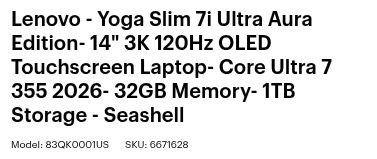
For the client-visit pick, use Lenovo’s model number, 83QK0001US, when asking another seller for a quote. Best Buy’s SKU identifies the listing in its own catalog.
Lenovo model 83QK0001US · Best Buy SKU 6671628. Excerpt from the Best Buy US product page. Checked November 12, 2026.
Is “3K” a better screen than “2.8K” here? I’d skip straight to the pixel count. Best Buy lists 2880 × 1800 under Screen Resolution. Lenovo calls that same resolution 2.8K and lists a maximum 120 Hz refresh rate. The Yoga accepts finger touch. For annotating a floor plan with an active pen, see the MSI Prestige 14 Flip. Lenovo’s display and pen specifications.
Would a cheaper 16 GB listing do? This US listing pairs 32 GB of memory with a 1 TB SSD. Lenovo solders the memory to the board and provides no spare slot. Lenovo’s memory specification.
ThinkPad X1 Carbon Gen 14 — which screen earned 23 hours?
On the German listing, look for Herstellernummer, the manufacturer’s number. 21V70075GE identifies the Core Ultra 5 325, 32 GB RAM, 512 GB SSD and 14-inch, 1920 × 1200 low-power IPS touchscreen. The shorter number 52860 is the shop’s own item number. Notebookcampus listing · Lenovo’s sheet for this exact model.
In Notebookcheck’s Wi-Fi test at 150 nits, that IPS configuration ran for 23 hours 13 minutes. The same review compares an X1 Carbon Gen 14 with OLED and a Core Ultra 7 355 at about 13½ hours. Both have a 58 Wh battery, but the processor changes along with the screen. Notebookcheck’s test and comparison.
LG gram Pro 16 — one character changes what you’re buying
Both versions below have the same 16-inch, 2560 × 1600 matte IPS screen for side-by-side documents. The model suffix tells you how much memory and storage you get.
If my trip is mostly spreadsheets and proposals and those already run comfortably in 16 GB, I’d stick with AU89G. That’s the one Notebookcheck measured at 19 hours 36 minutes of Wi-Fi browsing. If I also need a large offline sample library or my current projects already push past 16 GB, I’d ask for the price of AU8CG. Notebookcheck’s tested LG configuration.
How much does each configuration cost?
The first $450 upgrade doubles the Zenbook A14’s memory and storage. The next $450, from the 32 GB A14 to the Yoga, buys a touchscreen and a different processor at the same capacity.
US prices for new laptops at Best Buy, November 12, 2026. USD before tax, accessories and shipping.
If I already use a Mac for client calls, spreadsheets and presentations, I’d take the $1,149 MacBook Air and use my own work files to judge whether 512 GB is enough. If the team uses Windows and IT has cleared our VPN and peripherals for Arm, I’d pick the $1,349.99 A14 for the same trip. Its built-in HDMI port takes the cable in the meeting room, and a USB-A presentation clicker can stay plugged in at the same time. ASUS port specifications.
Before spending the first $450, I’d open a typical client project on my current laptop. Can I keep the video call, costing workbook and presentation open comfortably? How much space is left after I download everything I need for the trip? If 16 GB has been tight or the offline folder routinely fills a 512 GB drive, I’d buy the 32 GB / 1 TB A14. If both fit comfortably, the cheaper A14 already has the ports I came for.
What does the second $450 buy?
For someone who regularly sits beside a client to mark out a detail with a finger, the screen is the main difference. The Yoga has a 2880 × 1800, 120 Hz OLED touchscreen. The two A14s listed here have 1920 × 1200, 60 Hz OLED screens without touch. The independent reviews put the 32 GB A14 at 992 g and the Yoga at 978 g before chargers. There’s just 14 g between them. The other practical difference is whether your company’s equipment works on Windows on Arm. Lenovo display specifications · ASUS display specifications · A14 test unit · Yoga test unit.
What if the room only has HDMI? Suppose there’s already an HDMI cable on the table and I don’t own an adapter. Best Buy’s Insignia USB-C to HDMI adapter was $19.99. The 32 GB A14 plugs straight in at $1,799.99. The Yoga and adapter come to $2,269.98, a $469.99 difference before tax. With a USB-C display or an adapter already in my bag, the difference goes back to $450.
Would I order the same laptop for five people on the road?
Four colleagues return on Friday and one flies out for six weeks. Put two names on the pilot order: the person who can approve the corporate setup at home and the traveler who will need help abroad. Have the first person enroll the exact configuration, then give the enrolled machine to the second for a day. A test made with an administrator’s sign-in can miss restrictions that appear in an ordinary employee account.
Can the first employee sign in the way IT expects?
At Best Buy, the US Yoga 83QK0001US ships with Windows 11 Home. Look under Compatibility in the full specifications. Lenovo’s sheet for the US ThinkPad E14 Gen 7, 21SX0039US, lists Windows 11 Pro. That detail matters if IT expects the employee to sign in to Windows with a company account on a device joined to Microsoft Entra. Home doesn’t support that kind of join. Yoga retail specifications · E14 model sheet · Microsoft’s Entra join requirements.
If a salesperson wants the Yoga touchscreen for demonstrations, I’d ask for a Pro-equipped quote or have IT price the Home-to-Pro upgrade. If Pro and a built-in Ethernet port cover the brief, I’d start with the less expensive E14. If IT uses Windows Autopilot, ask who will register the machines to your organization before shipping. I’d have the new starter try the first sign-in on the pilot unit before sending another box directly to a hotel. Microsoft’s edition upgrade guide · Autopilot registration for resellers.
What would I try on that first working day?
I’d give the traveler their usual VPN, presentation remote and a copy of the deck they’re taking. Have them connect from a mobile hotspot, open the shared proposal, then unplug from the network and present the downloaded copy on the meeting-room display. If the Snapdragon Zenbook A14 is on the shortlist, this is when I’d try the exact USB device and VPN the team uses. Microsoft explains that hardware and apps that need a driver depend on an Arm-compatible driver. Microsoft’s guidance on Windows on Arm.
Sharing one hotel socket with a phone? The Yoga needs at least 20 V at 2.25 A (45 W) to operate and start charging. Its fastest charging profile is 20 V at 3.25 A (65 W). Yoga user guide, under Specifications.
Belkin WCH013. It supplies 20 V when the Yoga is plugged in alone. With a phone connected too, neither port lists the 20 V the Yoga needs. Belkin’s output chart.
Insignia NS-PW31XC2W22. USB-C2 still offers 20 V at 3.25 A while USB-C1 powers a phone. Use C2 for the Yoga with a cable rated for at least 65 W. Insignia’s two-port specifications.
If the laptop fails in week two abroad, who takes it in?
Take the German X1 Carbon, 21V70075GE. Its model sheet lists three years of base courier or carry-in service and a Premier Support upgrade. The US E14 above lists one year of courier or carry-in service. Now picture the traveler in Singapore with a machine that won’t start. Neither figure tells them where to take it that afternoon. X1 service terms for the German model · E14 service terms for the US model.
Before the flight, I’d enter the machine type or serial number in Lenovo’s international warranty lookup, select the destination, and check what service is offered there. Lenovo says the delivery method can vary by country. I’d save the serial number, the local authorized service contact and our IT help-desk number on the traveler’s phone. If a repair means mailing the machine away, I’d agree with IT on a loaner before departure. Lenovo’s international warranty terms.
Which laptop fits your next business trip?
For client visits on foot, the Lenovo Yoga Slim 7i Ultra Aura Edition with 32 GB works well when the meeting rooms have USB-C displays. The laptop and charger weighed 1,155 g in Notebookcheck’s test. For a long train ride without a reliable outlet, the low-power IPS ThinkPad X1 Carbon Gen 14 has the longer tested runtime. For sites with HDMI projectors and wired networks, the Dynabook Portégé Z40L-N takes both cables directly. For evenings comparing invoices with a spreadsheet and no external monitor, the 16-inch LG gram Pro gives each document more room.
Sources for weights, battery life, ports and screens
For a day of client presentations, begin with the ASUS Zenbook S14 or an approved ThinkPad X1 Carbon configuration because their native connections simplify the equipment plan. For a short trip built around writing and carrying, compare the Lenovo Yoga Slim 7i Ultra with a MacBook Air in a supported Mac environment. For a longer stay, decide how the laptop will work with the destination desk before choosing between a conventional Windows system, the Air and an approved Surface Laptop configuration.
A sales presenter may need HDMI for 20 minutes yet have no way to do the job without it. A writer on a two-night trip may go days without connecting a display. A colleague away for a week has a different nuisance: reading a wide workbook every evening on the same small screen. Those are the three trips behind the shortlist.
LightweightTablet Guide’s business-travel laptop comparison provides a broader configuration-based shortlist. Here, the comparison follows three journeys from preparation to the finished deliverable. Manufacturer documents establish hardware facts; the packing choices, acceptance actions and conditional recommendations below are editorial analysis.
Trip one: a morning train, a client presentation and a return journey
Imagine taking a morning train, revising a proposal at the destination and presenting it before returning home that evening. The client confirms an HDMI display, and your presentation receiver uses USB-A. You also want the laptop charging while the presentation runs. That is a specific connection problem, rather than a general request for the best business computer.
The ASUS Zenbook S14 UX5406AA is the first consumer Windows candidate to investigate for this example. ASUS documents HDMI, USB-A and two Thunderbolt 4 ports for the AA platform. These give the display, receiver and power supply separate routes. Its suitability still depends on the selected configuration and on the actual display accepting the intended output; a port inventory is useful preparation, rather than a rehearsal of the finished meeting. ASUS — Zenbook S14 specifications
An employer-approved ThinkPad X1 Carbon Gen 14 is the alternative when the purchase must fit a company hardware standard. Its documented HDMI, USB-A and three Thunderbolt 4 connections address the same physical task. Selected business features can also matter to procurement, but those should appear on the order specification. Buying a ThinkPad does not automatically establish the service entitlement, management configuration or cellular equipment your employer requires. Lenovo PSREF — ThinkPad X1 Carbon Gen 14 Aura Edition
The Yoga Slim 7i Ultra remains eligible when a known adapter is already part of the working equipment. Its three Thunderbolt 4 ports can support an appropriate expansion arrangement, while the absence of native HDMI and USB-A makes that arrangement a required purchase decision. For someone using the same tested hub in familiar rooms, this may be manageable. For someone borrowing unfamiliar equipment repeatedly, direct connections may justify choosing the ASUS or ThinkPad instead. Lenovo PSREF — Yoga Slim 7 Ultra 14IPH11
Best presentation setup: select the connection route before the laptop
Work to complete
Equipment or condition required
Check before departure
Alternative to prepare
Show the saved proposal
A compatible display path at the required resolution
Present the actual file through the selected cable or adapter
An approved exported copy that the host can display
Advance slides remotely
A supported receiver and an available connection
Use the receiver while the display and charger are connected
The laptop’s own controls, if workable in the room
Remain powered during discussion
A suitable charger and cable plus a usable power route
Run the complete connected arrangement together
A planned charging opportunity before the meeting
Retain an editable result
The required application, fonts and document components
Save, reopen and hand over a representative file
A separately identified fixed-layout version for viewing
Count the connections that overlap. With HDMI carrying the picture, a USB-A receiver advancing the deck and a USB-C supply powering the computer, all three must work at once. The S14’s separate sockets provide a direct route. On the Yoga Slim, choose a hub whose video, USB-A and charging functions can operate together, then take it to the presentation rehearsal.
Ask the meeting organizer one useful question early: what connection will actually be available at the presenter’s position? A room can contain an HDMI-equipped screen while the accessible connection is somewhere else. Knowing the route lets you prepare the cable length, adapter and power arrangement without guessing from a venue photograph. The goal is an ordinary, repeatable start to the presentation.
Our guide to meeting-room and hotel-work connections develops this part of the trip. Use it alongside the equipment inventory, rather than as another source of laboratory results. Once the complete route works, consider the keyboard, screen and carrying comfort that distinguish the remaining eligible choices.
For this itinerary, the conditional recommendation is straightforward: investigate the S14 when buying a personal Windows work computer around frequent presentations; use the X1 Carbon when a specific company configuration earns its place; retain the Yoga when an approved USB-C accessory arrangement already covers the job. The presentation itself determines whether direct ports are a convenience or a decisive requirement.
One final detail can change the equipment choice: who will control the displayed document? If you are presenting from your own laptop, the screen connection and receiver are central. If the client will open the file on its own computer, a successful handoff may matter more than your laptop’s HDMI socket. Agree which arrangement the meeting will use, then prepare that arrangement. Keep an identifiable viewing copy apart from the editable working file when both are needed. This separates two different purchases: equipment for driving a room display and equipment for producing a deliverable someone else will present. A buyer should not pay for one route while the actual appointment depends on the other.
Trip two: two nights away with several periods of work between appointments
A two-night visit creates a different problem. You may edit a document before the first appointment, read reference material during a connection, and prepare the next day’s work in accommodation. There is no guarantee that every useful working period coincides with a reliable network or a convenient desk. Begin by deciding which tasks must remain possible using the laptop and the equipment in your bag.
The Yoga Slim 7i Ultra 14IPH11 is worth investigating for an Intel Windows, keyboard-led routine that uses its OLED touchscreen and selected capacity. Lenovo documents a 14-inch 2880 × 1800 panel, a 75Wh battery and a family starting weight of 975g. That starting value is not a measurement of the specific 83QK0001US retail unit. Keep the exact weight unresolved until suitable model-specific information or the actual machine is available. Lenovo PSREF — Yoga Slim 7 Ultra 14IPH11
A MacBook Air 13-inch M5 becomes a useful alternative when the organization and required applications already support macOS. Apple’s documented design includes a 13.6-inch display, MagSafe charging, two Thunderbolt 4 ports and a headphone connection. Its fanless construction can be attractive for writing in a quiet space. Neither that design nor the laptop’s published 1.23kg weight establishes whether it will complete a Windows-dependent client workflow. Apple — MacBook Air technical specificationsApple — MacBook Air with M5
For both machines, compare the work that survives without connectivity. Downloading the main document may be insufficient if it depends on reference files, images, fonts, licensed functions or an approved remote service. Make a short list of the pieces required for the next deliverable. Where a task genuinely needs a network, identify that dependency rather than treating it as an offline capability of the computer.
Best short-trip setup: pack for the work between appointments
Part of the working set
What to prepare
Useful acceptance action
Main document
A permitted local copy in the required format
Open it without a network, make an ordinary revision and save it
Reference material
The files needed to explain or verify the revision
Open the relevant pages or assets during the same offline session
Presentation equipment
The exact required cable, receiver and conversion equipment
Connect the complete set before packing
Charging equipment
A compatible supply, cable and destination plug arrangement
Confirm the equipment used for the trip powers the laptop
Return handoff
An agreed location and version-identification method
Reopen the saved result and confirm which copy will be shared
The acceptance action matters more than a promise that a laptop is suitable for productivity. Use an ordinary sample of the files you expect to handle, including a spreadsheet dependency or presentation component if the trip relies on it. Completing that limited sequence provides useful evidence about your setup; it does not establish the machine’s behavior under every application or future workload.
Memory should be chosen at this point, alongside the working set. An Air with 16GB and 512GB storage and one with 32GB and 1TB are different capacity purchases. The larger configuration deserves consideration when the actual concurrent applications or local projects need it. Moving between hotels does not, by itself, create a 32GB requirement. Observe the work you already do before paying for an upgrade whose purpose is undefined.
Windows purchasers need the same discipline. The Yoga configuration in the buying record below has 32GB and 1TB, while the S14 offers a comparable stated capacity in the selected configuration. These are useful order details, not proof that the two processors or cooling designs perform identically. A task dominated by local computation may lead to a different class of machine from a task dominated by writing and calls.
Our travel-kit weight guide helps turn the shortlisted computer into a consistent packing boundary. Record the laptop, protection, charger, cable and necessary adapters. Count an item because the trip requires it, and record an unknown component as unknown. A comparison becomes less useful when a required adapter silently disappears from one candidate’s equipment list.
For this journey, investigate the Yoga when Intel Windows and its display arrangement fit the work; investigate the Air when a supported Mac workflow and its keyboard-led design fit the same deliverables. Bring the S14 back into the comparison if native presentation connections remove a recurring difficulty during the visit. The meaningful result is a complete, usable short-trip setup, rather than a winner inferred from a family weight headline.
Repeat the packing exercise for the return journey. A charger left beside a hotel bed and a receiver left in the meeting room have different places in the departure routine. Arrange the kit so the items can be checked against the inventory after the last appointment, including any cable borrowed from another part of the bag. This is also a useful way to evaluate protection and access: can you remove the computer for a brief document check without unpacking everything else? Laptop dimensions and the sleeve you intend to use matter here. An advertised screen diagonal alone does not tell you whether the working kit fits the compartment you already carry.
Trip three: a week working from a temporary base
During a week away, the laptop may spend much more time on a desk than on your shoulder. A temporary base can involve long writing sessions, regular calls and repeated use of an external display. Investigate the destination equipment before deciding how small the laptop should be. A compact computer at an equipped desk and the same computer working alone in a bedroom create different experiences.
Ask what is actually supplied: the monitor model and inputs, desk surface, seating, accessible power and permitted network route. A television in the room is not automatically a suitable daily monitor. Establish which parts of the arrangement you can bring or arrange locally, and which remain uncertain. That information gives the screen and port comparison a practical purpose.
For an established Mac environment, the Air’s external-display support may be useful at an equipped base. Apple documents two external displays within its specified resolution and refresh limits. Check the complete cable and display route for your intended arrangement; the existence of two Thunderbolt ports does not identify every capability of a chosen dock. Apple — MacBook Air technical specifications Our two-workspace laptop comparison explains how to inventory the equipment at both ends of a journey.
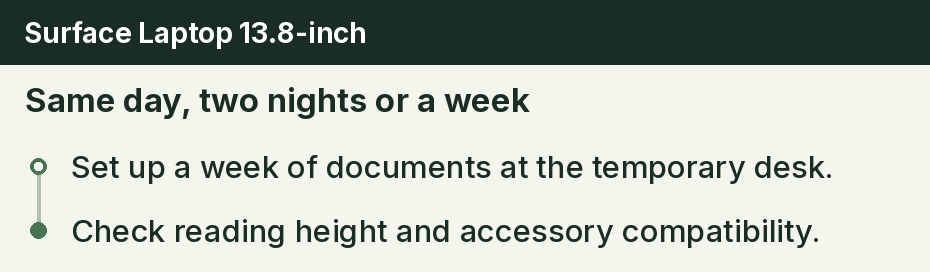
A Surface Laptop 13.8-inch, 8th Edition is another candidate when its Snapdragon X2 configuration and required software have been approved. The selected consumer Store page documents a 3:2 touchscreen format, USB-A, two USB-C/USB4 connections, audio and Surface Connect. A taller display can be worth trying with the documents used during a long workday, but its usefulness should be assessed with those documents rather than translated into an automatic productivity score. Microsoft Store — Surface Laptop 13.8-inch, 8th Edition
The important condition is the whole Windows-on-Arm environment. Check required applications and the devices that depend on drivers, including the employer’s remote-access and security arrangements. Microsoft explains relevant compatibility boundaries in its Windows Arm guidance. A familiar application opening successfully is useful, but it does not verify the specialist peripheral needed later in the week. Microsoft — Windows Arm-based PCs FAQ
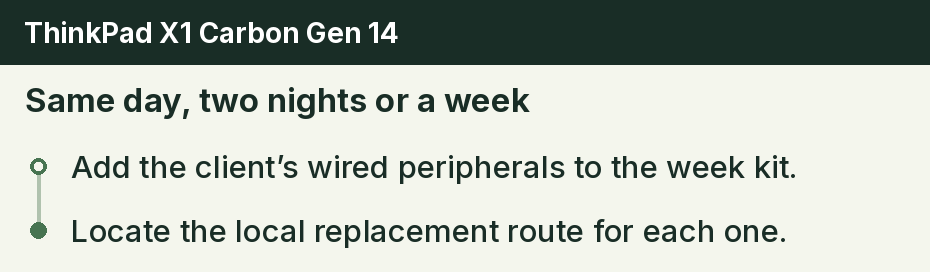
For a company-managed temporary office, the X1 Carbon remains a relevant conventional Windows option. Its usefulness depends on the approved image, accessories and service package recorded for the exact order. Keep this question distinct from the lowest purchase price: a supported corporate arrangement can be valuable when it resolves a real requirement, while the same expenditure may bring little benefit to an independent buyer doing uncomplicated browser work.
Best temporary-office setup: plan how work continues after an interruption
Possible interruption
Preparation that addresses it
What to establish beforehand
The external display is unavailable
A workable laptop-only document layout
Whether the actual screen remains comfortable for the required tasks
A conference call becomes difficult
An approved headset and a permitted alternative connection or rescheduling route
The organization’s options for continuing the meeting
A working file is damaged or lost
A separate recoverable copy with clear version information
How to retrieve the right document through the approved process
The laptop needs service
A named support route and a permitted handoff arrangement
Eligibility, destination coverage and the work another device can take over
This is a continuity plan, not a prediction that any particular laptop will fail. A short rehearsal can reveal whether the plan is usable: retrieve a representative saved document through the approved recovery route, then check that it opens with the information needed to continue editing. Keep the exercise separate from the only working copy of an important file.
International service should also be checked at model level. Lenovo’s International Warranty Service depends on eligibility and destination support, and delivery arrangements can vary by country. A globally familiar brand name cannot supply those order-specific answers. Lenovo — International Warranty Service Ask the employer or seller how the actual purchase is supported where the work will take place.
For a week at a base, give preference to the setup that supports sustained ordinary work in that location. An Air can fit an approved Mac desk; a Surface can fit a validated Arm workflow and a preferred touchscreen format; an X1 Carbon can fit a defined company standard. If the work instead involves prolonged heavy local calculations or graphics processing, investigate relevant application testing and a suitable cooling design before making portability the deciding factor.
Distinguish inconvenience you can resolve at the destination from a limitation that follows the computer throughout the week. A missing external keyboard may be easy to arrange at a known office. An unsupported essential application requires a different decision before departure. Make the same distinction when budgeting: equipment that stays at the base changes cost and desk usability, while equipment packed every morning changes the carrying comparison as well. This prevents a stationary monitor from being counted as a travel burden in one setup but ignored in another. It also lets a compact laptop compete fairly when the temporary office already supplies the working surface the traveler needs.
Set a power plan for the hours that really matter
Battery capacity, advertised maximum runtime and a reviewer’s browsing result describe different things. This article does not combine them into one endurance ranking. Make a schedule of the periods when charging will be inconvenient, and identify the work needed during those periods. A short document check, a lengthy call and local processing impose different demands on the same computer.
Use normal working brightness and the applications expected on the trip when observing your existing or newly purchased machine. Leave room for uncertain working conditions. The purpose is a personal planning range, not a published laboratory result. The guide to interpreting battery claims distinguishes the evidence behind manufacturer statements and identified reviews.
Charging deserves a separate check. Lenovo’s Yoga platform document specifies USB Power Delivery support in the 45–65W range for its Thunderbolt connections. Lenovo PSREF — Yoga Slim 7 Ultra 14IPH11 That does not make every USB-C supply or multiport arrangement equivalent. Verify the manufacturer’s requirements for the exact laptop, the chosen cable and the power available when other devices are connected. Test the travel arrangement before relying on it away from the office.
Do the same check with the presentation equipment attached. A single successful charging session does not demonstrate that the charger, hub, display and receiver work together. Once the equipment is selected, the complete assembly becomes the useful object to test and pack. It also becomes a more informative comparison than the weight of an unspecified charger omitted from the calculation.
Keep one purchase record for the setup you chose
Match the part number on the quote with the retailer or manufacturer listing below. Two listings headed “Zenbook S14” can refer to different generations. Record the suffix before comparing price, warranty or what comes in the box.
Candidate
Configuration identifier to match
Best reason to inspect this selection
Buying page
Lenovo Yoga Slim 7i Ultra Aura Edition
83QK0001US; Core Ultra 7 355, 32GB/1TB
Intel Windows, OLED touch and a planned USB-C equipment set; exact weight and Windows edition need confirmation
Before placing an order, write down the trip that justified the choice and the condition that could change it. Frequent unfamiliar presentations may favor direct ports; a supported Mac workflow may favor the Air; a company standard may determine the ThinkPad configuration. For a Yoga purchase, confirm the selected unit and accessory set rather than treating the family’s minimum weight as the answer.
For the next trip, write the one thing the purchase saved you from carrying. If the answer is still “nothing” after packing the charger, display cable and receiver, reconsider whether a second machine is worth buying.
Editorial context
The trip plans are illustrative editorial analysis based on linked documentation and selected purchase configurations. This is not a report of original comparative testing. The linked LightweightTablet Guide article provides related reading.
Official sources & verification
Manufacturer documentation checked 11 November 2026. Availability, bundles and specifications vary by region and configuration.
business-travel laptop comparison Source associated with the linked specification, purchase configuration or related editorial framework.
ASUS specifications Manufacturer documentation, identified purchase offer or original review, as attributed alongside the relevant claim.
Lenovo specifications Manufacturer documentation, identified purchase offer or original review, as attributed alongside the relevant claim.
Lenovo specifications Manufacturer documentation, identified purchase offer or original review, as attributed alongside the relevant claim.
Lenovo configuration Manufacturer documentation, identified purchase offer or original review, as attributed alongside the relevant claim.
Apple specifications Manufacturer documentation, identified purchase offer or original review, as attributed alongside the relevant claim.