For business travelers who present to clients and then finish substantial work in accommodation, compare the ASUS Zenbook S14 and an appropriate Dell Pro or ThinkPad configuration when direct monitor connections matter. Consider the HP EliteBook Ultra for an approved USB-C desk, the LG gram Pro 16 for a larger self-contained workspace, and the Lenovo Yoga Slim 7i Ultra when a lighter Intel OLED-touch computer fits the required accessories. The best choice follows the equipment used at the destination.
Asking “Which lightweight laptops would you recommend for business travelers?” often produces a discussion of airport carrying weight. A presentation-heavy trip creates another problem: the laptop may need to connect reliably to unfamiliar displays, preserve a working charging arrangement and remain comfortable for several evenings of reports. This guide follows that sequence from meeting room to hotel desk.
Describe the destination before choosing the computer
Begin with the first event after arrival. Will the laptop drive a room display through HDMI, connect through a USB-C meeting-room cable or run a call using its own screen? Ask the venue or host to identify the connection if possible. A photograph of the actual sockets is more useful than an assurance that the room has a modern projector.
Then describe the evening workload. If the hotel session is limited to sending a summary, the built-in display may be sufficient. If several evenings involve large spreadsheets, slide editing or document comparison, screen layout and input position deserve more attention. The laptop that is easiest to lift is not automatically the easiest one on which to finish that work.
Our general business-traveler laptop guide provides the broader selection. The choices below focus on repeated connections and temporary desks. For the earlier part of the journey, the flight-day choices guide considers packed weight, restricted table space and work between charging opportunities.
Six arrangements worth comparing
These are role-based candidates rather than a universal ranking. A product family can contain different screens, processors and service packages. Read the exact suffix and the selected order before treating the name as a complete specification.
| Candidate | Useful destination role | Direct connection reference | Question that should settle the purchase |
|---|---|---|---|
| ASUS Zenbook S14 UX5406AA | Intel OLED work with familiar desk equipment | HDMI, USB-A, two Thunderbolt 4 ports | Do its fixed capacity and chosen CPU fit the workload? |
| Dell Pro 14 Premium PA14250 | A company-managed trip with a defined service order | HDMI, USB-A, two Thunderbolt 4 ports | What panel and support entitlement are actually included? |
| HP EliteBook Ultra G1i | An approved business computer for a USB-C desk | USB-A, three Thunderbolt 4 ports | Is a separate HDMI connection required? |
| Lenovo ThinkPad X1 Carbon Gen 14 | A specified business build for mixed meeting and desk work | HDMI, USB-A, three Thunderbolt 4 ports | Which screen, processor and optional features are ordered? |
| Lenovo Yoga Slim 7i Ultra Gen 11 | Low-mass Intel OLED touch with a selected adapter kit | Three Thunderbolt 4 ports | Does the complete connection kit preserve its carrying benefit? |
| LG gram Pro 16Z90U | A larger screen when no external monitor is available | HDMI, USB-A, two Thunderbolt 4 ports | Does the larger enclosure fit the real desk and bag? |
ASUS Zenbook S14 UX5406AA — Best for familiar connections at a temporary Intel desk
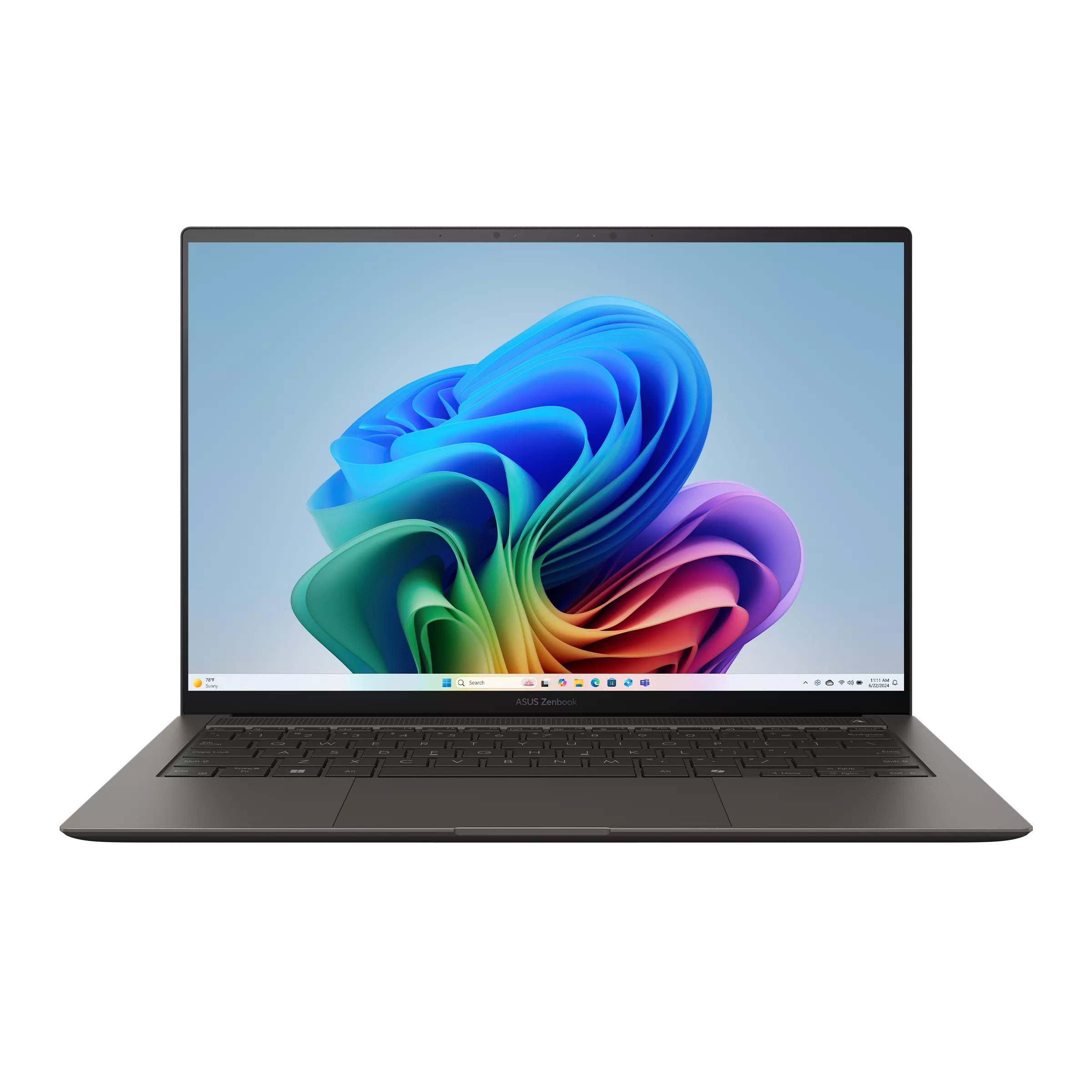
The S14 is a useful starting point when the trip repeatedly involves HDMI displays and USB-A equipment. ASUS documents those connections alongside Thunderbolt 4 in the AA model. Its OLED touchscreen also provides a built-in working display when a destination monitor is unavailable. Use the relevant column in the official specifications.
Its role comes from reducing connection changes, not from winning every hardware category. Confirm onboard memory and the particular processor on the offer. The original reviewed configuration used Ultra 9 386H; a similarly named US offer can use another processor and Windows edition.
Dell Pro 14 Premium PA14250 — Best for a company order with defined responsibilities
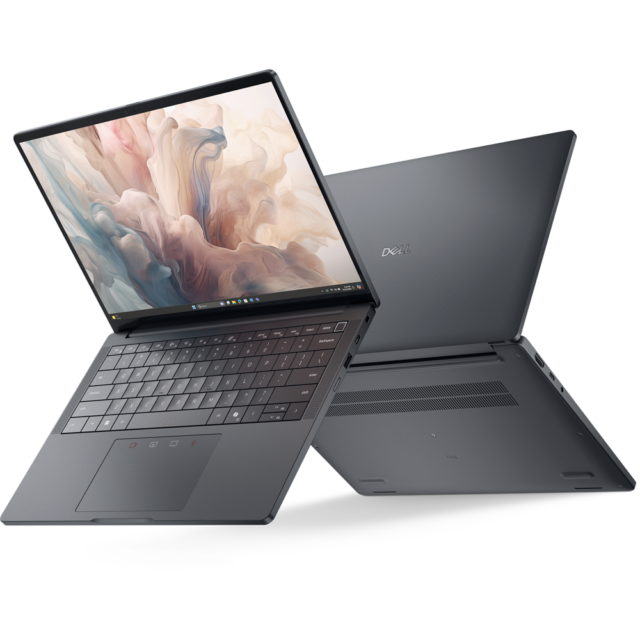
A Dell Pro purchase can make sense when the employer needs a specified business configuration and an established support process. The PA14250 manual identifies HDMI, USB-A and Thunderbolt connections that can be relevant to repeated client visits.
The order matters more than the badge. Obtain the selected panel, capacity, operating-system edition and service terms together. The independently reviewed OLED sample is useful hardware evidence, but it does not establish the local repair response attached to another order or the availability of a replacement computer.
HP EliteBook Ultra G1i — Best for continuing an approved USB-C office setup
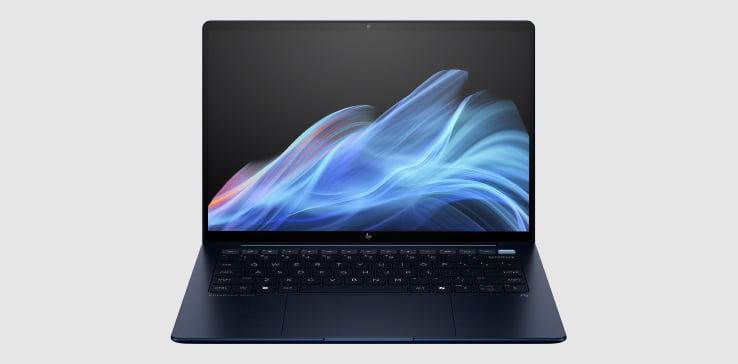
The Intel G1i is relevant when the organization already supports the HP configuration and uses USB-C monitors or docks. HP documents three Thunderbolt 4 connections, USB-A and a 14-inch OLED display in its solution brief. HDMI is an additional connection decision.
That arrangement can work well for a longer stay with a known desk, while an HDMI-heavy itinerary needs the corresponding adapter. Keep the Intel model separate from similarly named Snapdragon products. The original G1i review identifies its own sample rather than measuring every configuration in the family.
ThinkPad X1 Carbon Gen 14 — Best for matching the business build to the assignment
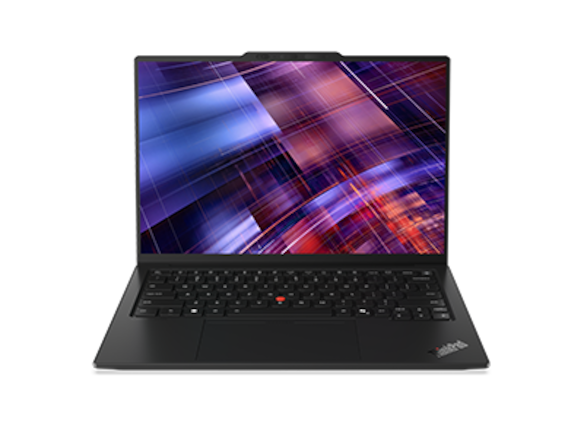
The X1 family offers a way to specify screen choice and a business connection set together. Its Lenovo specification document identifies HDMI, USB-A and Thunderbolt 4, with additional features dependent on the build.
The useful question is which configuration serves the assignment. The published IPS and OLED evidence shows why one family name cannot supply a single weight or endurance figure. Record the screen and processor on the quote, then confirm the employer's requirements and support entitlement for that particular order.
Lenovo Yoga Slim 7i Ultra Aura Edition Gen 11 — Best for a low-mass Intel touchscreen kit
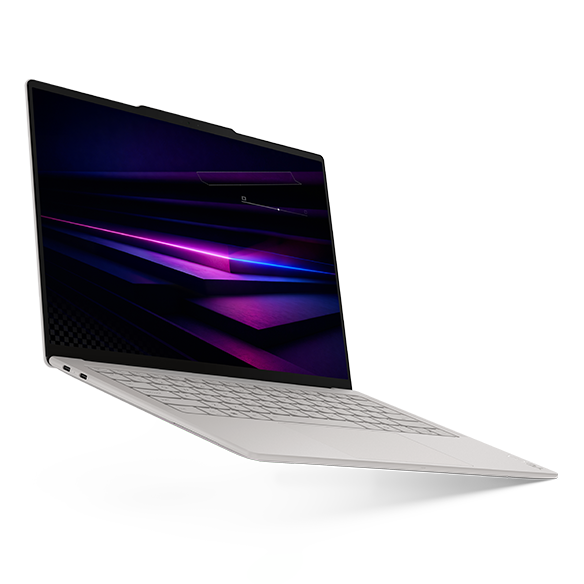
The Yoga provides a light Intel laptop with OLED touch, but the destination kit needs to be chosen alongside it. The official 14IPH11 document lists three Thunderbolt 4 ports rather than built-in HDMI or USB-A.
It is a reasonable candidate when carrying is frequent and the required adapter arrangement is already known. The original measured review supplies sample-specific weight and battery evidence. Add the real adapter, charging cable and any wired audio requirement before deciding whether its lighter computer produces the more useful complete setup.
LG gram Pro 16Z90U — Best for a larger self-contained evening workspace
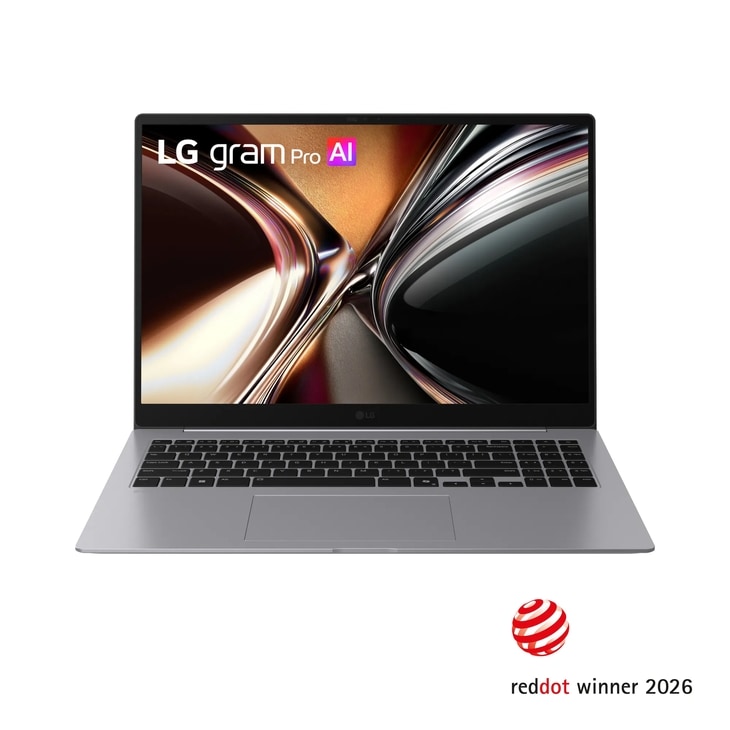
The gram belongs in the comparison when the laptop itself must provide the working display throughout a longer stay. LG's global family documentation identifies a 16-inch OLED option, numeric keypad and conventional presentation connections.
The larger screen should earn its place through the documents you use. Open a representative spreadsheet or compare two report pages at comfortable text size. Its larger physical enclosure still needs a suitable bag and desk. The first-hand Techgoondu article provides further reading, but did not perform a battery-drain test; no runtime is inferred from it.
Map four connections before buying a hub
The first connection is the room display. Identify the connector, required resolution and whether sound should travel through the same path. The second is power: decide which port or charger will keep the computer charged while it is presenting. The third is data, such as a storage device or an approved network adapter. The fourth is audio, if the meeting uses a wired headset or separate room equipment.
Draw the arrangement on paper. A laptop with two USB-C sockets can be suitable, but a display adapter, charger and data accessory may require a different plan from a laptop with HDMI and USB-A built in. Conversely, a single compatible desk cable can make a direct-port advantage less relevant at a known destination.
The hub, dock and direct-connections guide develops this distinction. A USB-C connector shape alone does not establish display, charging or data capability. Match the computer documentation, adapter documentation and cable capability rather than assuming an accessory works because the plugs fit.
Rehearse the presentation, including the awkward ending
A useful rehearsal begins with the exact presentation file. Open it locally and check fonts, embedded media and any material that ordinarily depends on a network connection. Export a suitable backup format where the work permits it, but confirm that the backup preserves the information and interactions needed for this particular presentation.
Connect the display path and run through the beginning, a media-heavy section and the ending. The ending matters because it may lead directly into a call, file handover or live demonstration. Test those transitions rather than only proving that the opening slide appears. An adapter that displays a desktop is not the same as a completed meeting workflow.
Also check what happens after disconnecting and reconnecting the arrangement. Confirm which screen holds the presentation and which remains available for private notes. The rehearsal is a practical task for the chosen equipment; it is not a comparative laboratory test or a claim that a particular brand will avoid every connection problem.
Use a repeatable arrival routine
Give each meeting setup a short, repeatable order. Place the computer where the lid can open comfortably, attach the display route, connect power, and then add the data or audio equipment required for the session. Check the actual presentation view before participants depend on it. This is an organizational routine for the chosen kit, not a claim that every connection will complete in a fixed number of seconds.
Keep the smallest complete equipment set together. A display adapter that lives in another bag is functionally absent when the meeting begins. Label similar-looking cables if they serve different roles, and separate an essential presentation cable from an optional convenience item. The point is to reduce decisions at arrival, rather than making the pouch as large as possible.
After the session, check what has changed. A cable may have been moved to a different room, the external display may have become the primary screen, or a file may have been saved somewhere unexpected. Closing the loop makes the next setup more predictable. It also supplies better feedback for a future purchase than remembering only whether the laptop felt light at the airport.
Choose a hotel workspace that makes the screen useful
A hotel room can turn a light computer into the main office for several evenings. Before adding equipment, identify the difficult task. If the problem is a wide spreadsheet, additional display space may help. If the problem is a cramped keyboard position, another display alone may not address it.
The gram's larger built-in screen and the smaller OLED candidates represent different ways to solve that problem. A 16-inch enclosure also consumes more desk space. Place the proposed dimensions beside the mouse, power cable and papers you actually use. Leave room for a working posture instead of treating the entire desk surface as laptop clearance.
A portable monitor should have a recurring job before it enters the bag. It adds another item to power, position and transport. Compare a larger laptop, a smaller laptop with an additional display and a destination monitor as complete arrangements. Our one computer, two workspaces guide follows that choice across home and temporary desks.
Treat calls as a separate workload
A day of presenting and a night of video meetings do not resemble a single browsing benchmark. Camera operation, background applications, display brightness and the selected conferencing software all contribute to the practical workload. The microphone position and room acoustics also affect whether the setup is comfortable for other participants.
Run a normal-length call using the intended arrangement. Check whether the external display, headset and charger can remain connected together. Observe the battery trend and any inconvenience caused by cables or device placement. A short successful call is useful confirmation, but a longer representative session is better planning evidence for an evening of meetings.
Published endurance numbers still help when their scope is clear. Notebookcheck's documented WLAN procedure is a browsing test, not a promise for calls. The business-travel battery guide explains how to combine manufacturer claims, independent samples and your own work rehearsal without merging them into one guaranteed figure.
Compare the total purchase, not only the headline price
Ask for complete quotes on the same date. List the exact screen, memory, SSD, operating-system edition and included service. Then add the accessories required for the meeting arrangement: perhaps a display adapter, a suitable cable or an approved dock. Separate a necessary connection from an optional convenience.
An illustrative example makes the arithmetic clearer. Suppose one quoted computer is $120 less expensive but needs $45 of connection equipment that the other arrangement already provides. The immediate difference becomes $75. Those figures are an example, not current prices for the named machines. They do not quantify future reliability, downtime or resale value.
A business Pro order and a consumer Home order can also contain different services or licensing. Equal memory and SSD capacities do not make them equivalent. Compare what will actually be delivered and identify which difference serves the trip. The working-kit accessories guide can help remove items that have no recurring use.
Check charging while the desk is fully occupied
A charging decision should be tested with the display and data accessories already attached. A charger used alone may behave differently from a multiport unit sharing power among devices. Check the specified output for the chosen port combination and use an appropriate cable. The complete charging route needs to match the computer and the intended workload.
Also decide where the charger will live during the day. Moving one unit between meeting rooms and accommodation can simplify the bag, while a fixed destination arrangement can reduce repeated packing. Neither approach is universally better. The useful choice depends on how frequently the workspace changes and which equipment is available there.
Our USB-C charging guide for travel provides related editorial guidance. The actual power requirements still come from the computer and charger manufacturers. A higher printed watt figure on its own cannot establish compatibility or the behavior of every shared-port arrangement.
Write a failure plan that fits the assignment
For a one-night trip, a problem may be handled after returning to the usual office. For several weeks away, the team needs a more concrete plan. Establish who can authorize a replacement computer, how work files can be recovered and what account access the replacement will require. These are operational questions, separate from the hardware's repairability.
A machine with a replaceable storage component is not automatically one that a traveler is allowed to repair. Employer rules, encryption and support procedures can matter. Ask the organization for the permitted recovery route and confirm the included manufacturer's service terms for the actual destination. A business-family name should not be treated as a promise of immediate repair abroad.
This planning can change the shortlist. A supported Dell Pro, EliteBook or ThinkPad order may fit a managed fleet; a different consumer-family computer may suit a personally supported workflow. The useful distinction is the real entitlement and recovery process, not an assumption that one category has a universal service advantage.
Keep a room-by-room equipment record
A traveler visiting the same destinations repeatedly can build a simple equipment record. For each room, note the display connection used, whether the planned charger arrangement was convenient and which adapter actually completed the work. Include a short description of the task, because showing slides and running a live demonstration can demand different arrangements.
Use observations rather than an informal brand score. “The USB-C monitor supplied the tested setup and left the other port free” is useful information. “This brand always works” is not. A connection that was available in one room does not establish what another venue will provide, and a changed desk arrangement deserves another check.
Over several trips, the record can change the purchase priority. Repeated HDMI use gives a direct-port candidate a clear role. Repeated evenings without a usable monitor give the larger built-in screen a stronger case. A stable USB-C desk can make an approved lighter computer with a tested adapter kit equally practical. This turns equipment history into a buying reason without pretending it is a controlled reliability study.
A selection process for three meeting-heavy trips
For a two-day sales visit, list the room displays and the short evening tasks. A direct HDMI arrangement may reduce accessories, while a lighter USB-C-only machine may remain attractive if the tested adapter kit is simple. Compare the complete bags, including the power supply and the display path.
For a week of training sessions, repeatable setup becomes more valuable. The computer will connect to the same equipment many times, so rehearse the full teaching or demonstration workflow. Screen comfort in accommodation also deserves attention if the following day's material must be revised each evening.
For a month-long client assignment, choose the computer and temporary office together. Confirm the monitor or built-in screen, input arrangement, charging route, approved software and recovery plan. The best purchase may be a familiar supported configuration that disappears into the working routine. A specification premium has value only when it removes an inconvenience that will actually recur.
Frequently asked questions
Does built-in HDMI make a laptop automatically better for business travel?
It is useful when HDMI displays recur and a direct connection simplifies the kit. At a known USB-C desk, another arrangement may be equally practical. Map the actual display and charging route before deciding. Count required adapters and their placement rather than awarding points for sockets without a use.
Should I choose Thunderbolt because the connector is USB-C?
Check the exact computer and accessory documentation. USB-C describes the physical connector, while supported functions and capabilities differ. The same product family can even change ports with the processor selection. Match the required display, data and charging functions to the complete equipment chain.
Is a larger laptop better for a week in a hotel?
It can be better when the built-in screen is the main workspace and additional display area improves the documents. It can also consume space needed for a mouse or papers. Compare the actual dimensions with a comfortable working arrangement before treating screen size as the deciding specification.
How much memory should a presentation laptop have?
Start with the applications that run together, including conferencing and background organizational software. Open representative files and observe the intended workflow. The requirement can differ from a simple slide show to a demonstration involving large local data. Buy the capacity justified by that work and the employer's minimum configuration.
Can I rely on a browser version of every necessary application?
Confirm the specific functions, account requirements and offline behavior. A web application may simplify platform support while increasing dependence on a usable connection. Where a local client or device driver is required, test it separately. Microsoft's Windows Arm FAQ illustrates why application and driver support should be checked independently.
How were these recommendations assessed?
The site methodology distinguishes manufacturer specifications, published independent measurements and our editorial scenarios. Related Portable Laptop Guide articles extend that analysis; they are not independent tests of these products. The manufacturer and original review links above provide the product evidence for each role.
Official sources & verification
Manufacturer documentation checked 10 November 2026. Availability, bundles and specifications vary by region and configuration.
- ASUS specifications
Manufacturer documentation, identified purchase offer or original review, as attributed alongside the relevant claim. - Notebookcheck review
Manufacturer documentation, identified purchase offer or original review, as attributed alongside the relevant claim. - Dell documentation
Manufacturer documentation, identified purchase offer or original review, as attributed alongside the relevant claim. - PA14250 manual
Source matched to the cited hardware, software guidance or original review sample. - Notebookcheck review
Manufacturer documentation, identified purchase offer or original review, as attributed alongside the relevant claim. - HP documentation
Manufacturer documentation, identified purchase offer or original review, as attributed alongside the relevant claim. - solution brief
Source matched to the cited hardware, software guidance or original review sample. - Notebookcheck review
Manufacturer documentation, identified purchase offer or original review, as attributed alongside the relevant claim. - Lenovo configuration
Manufacturer documentation, identified purchase offer or original review, as attributed alongside the relevant claim. - Lenovo specifications
Manufacturer documentation, identified purchase offer or original review, as attributed alongside the relevant claim. - Notebookcheck review
Manufacturer documentation, identified purchase offer or original review, as attributed alongside the relevant claim. - Lenovo configuration
Manufacturer documentation, identified purchase offer or original review, as attributed alongside the relevant claim. - Lenovo specifications
Manufacturer documentation, identified purchase offer or original review, as attributed alongside the relevant claim. - Notebookcheck review
Manufacturer documentation, identified purchase offer or original review, as attributed alongside the relevant claim. - LG specifications
Manufacturer documentation, identified purchase offer or original review, as attributed alongside the relevant claim. - LG specifications
Manufacturer documentation, identified purchase offer or original review, as attributed alongside the relevant claim. - Techgoondu review
Manufacturer documentation, identified purchase offer or original review, as attributed alongside the relevant claim. - publisher's test method
Source matched to the cited hardware, software guidance or original review sample. - support.microsoft.com — cited product or review source
Manufacturer documentation, named sales offer or original review, as identified in this article.