The best lightweight laptops for business travel and remote work are the ones that connect cleanly to both the desk you leave and the workspace you arrive at. Compare the MacBook Air 13 M5 for an established Mac setup, ASUS Zenbook S14 for direct Windows connections, Dell Pro 14 Premium or ThinkPad X1 Carbon for a specified company environment, Lenovo Yoga Slim 7i Ultra for repeated carrying, and LG gram Pro 16 for a larger screen away from a monitor. The right choice depends on the equipment waiting at each end of the journey.
Think of a typical week: two days at a home desk with a monitor and keyboard, a client visit with an unfamiliar display, then several evenings working from accommodation. The laptop is only one part of that arrangement. A purchase becomes useful when its screen, connections, charging and software make the transitions straightforward. Our business travel and remote-work guide provides the broader shortlist; this comparison concentrates on how one computer serves two workspaces.
Describe the two desks before choosing the laptop
Start with a simple equipment inventory. At the primary desk, record the monitor inputs, intended resolution and refresh rate, keyboard connection, webcam, headset, wired network and available charging equipment. At the destination, list what has actually been confirmed rather than what a hotel photograph appears to promise. A television with an accessible HDMI input and a business monitor with USB-C charging create different requirements.
Separate equipment you use every day from equipment needed occasionally. Someone who presents once a month may reasonably carry a small adapter. Someone who connects to a room display four times a day has a stronger reason to choose native HDMI. The same distinction applies to a USB-A security key or wired headset. A connection that saves a few seconds once is a convenience; one that removes an interruption throughout the week can influence the laptop choice.
Then describe the work done between the desks. Reading a proposal on a train, editing spreadsheets in accommodation and participating in a call while looking at reference material place different demands on the built-in screen. A laptop that is excellent when docked can still be awkward during those intervening hours. The dimensions and panel deserve attention even when a large monitor normally handles the work.
Keep a separate note for access and permission. A client desk may provide a useful monitor while restricting which peripherals or network connections visitors can use. Ask what is permitted before planning around that equipment. Likewise, decide whether a charger or keyboard can remain at the destination between visits. Those answers can change the travelling kit without changing the laptop. A small written record shared with the workplace contact is often enough to make the next visit repeatable and prevent buying accessories for an arrangement that is unavailable.
Use a common comparison record for every candidate: exact model, installed memory, screen, required outputs, charger and support arrangement. Our comparison methodology explains the distinction between published specifications, measurements from identified review samples and practical buying judgments.
Six candidates for different desk arrangements
| Candidate | Relevant workspace arrangement | Documented screen or connections | Decision to settle |
|---|---|---|---|
| Apple MacBook Air 13 M5 | A Mac-supported home desk and quiet temporary workspace | 13.6-inch IPS display; two Thunderbolt 4 ports; MagSafe charging | Required Mac applications and complete external-display connection |
| ASUS Zenbook S14 UX5406AA | Intel Windows work with frequent direct peripheral changes | 14-inch OLED touch; HDMI, USB-A, two Thunderbolt 4 ports and audio | Exact CPU, panel, Windows edition and chosen dock |
| Dell Pro 14 Premium PA14250 | An employer-managed desk with an approved purchase configuration | Business configuration choices; connections documented in the model manual | The ordered hardware, image and service package |
| Lenovo ThinkPad X1 Carbon Gen 14 | A business desk whose panel and management needs shape the order | IPS/OLED choices; HDMI, USB-A and three Thunderbolt 4 ports | Panel, processor and optional business features |
| Lenovo Yoga Slim 7i Ultra Aura Edition Gen 11 | Repeated carrying with an Intel OLED-touch preference | 14-inch 2880×1800 OLED touch; three Thunderbolt 4 ports | Adapter needs for HDMI, USB-A and wired audio |
| LG gram Pro 16Z90U | A temporary desk where the laptop supplies the larger viewing surface | 16-inch display family and conventional peripheral connections | Local panel, desk space and the complete carrying kit |
These choices cover different working arrangements. They are most useful as starting points for complete configurations, rather than a single sequence from first place to sixth.
Apple MacBook Air 13 M5 — Best for an established Mac desk
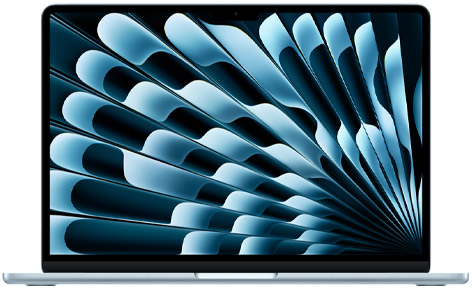
The Air is a natural candidate when the applications, account access and peripherals already work well on macOS. Its 13.6-inch screen and 1.23kg published weight make it manageable between desks, while separate MagSafe charging preserves the two Thunderbolt ports for other uses. Apple's specifications also identify support for two external displays, with the supported resolutions and refresh rates depending on the arrangement.
Choose it for a home desk that has a confirmed Mac-compatible display path and for travel where the built-in screen handles ordinary documents. A fanless design can be attractive in shared accommodation or a quiet room. Notebookcheck's entry-model review supplies a useful independent look at that design and its particular 16GB/512GB sample.
Before ordering, rehearse the employer's complete workflow, including required VPN and security components. Also confirm the external display chain: a dock with two monitor sockets needs the appropriate Mac compatibility, not merely two cables. Where macOS is already supported, the Air can simplify the daily transition without asking the user to rebuild their work environment.
ASUS Zenbook S14 UX5406AA — Best for direct connections at changing desks
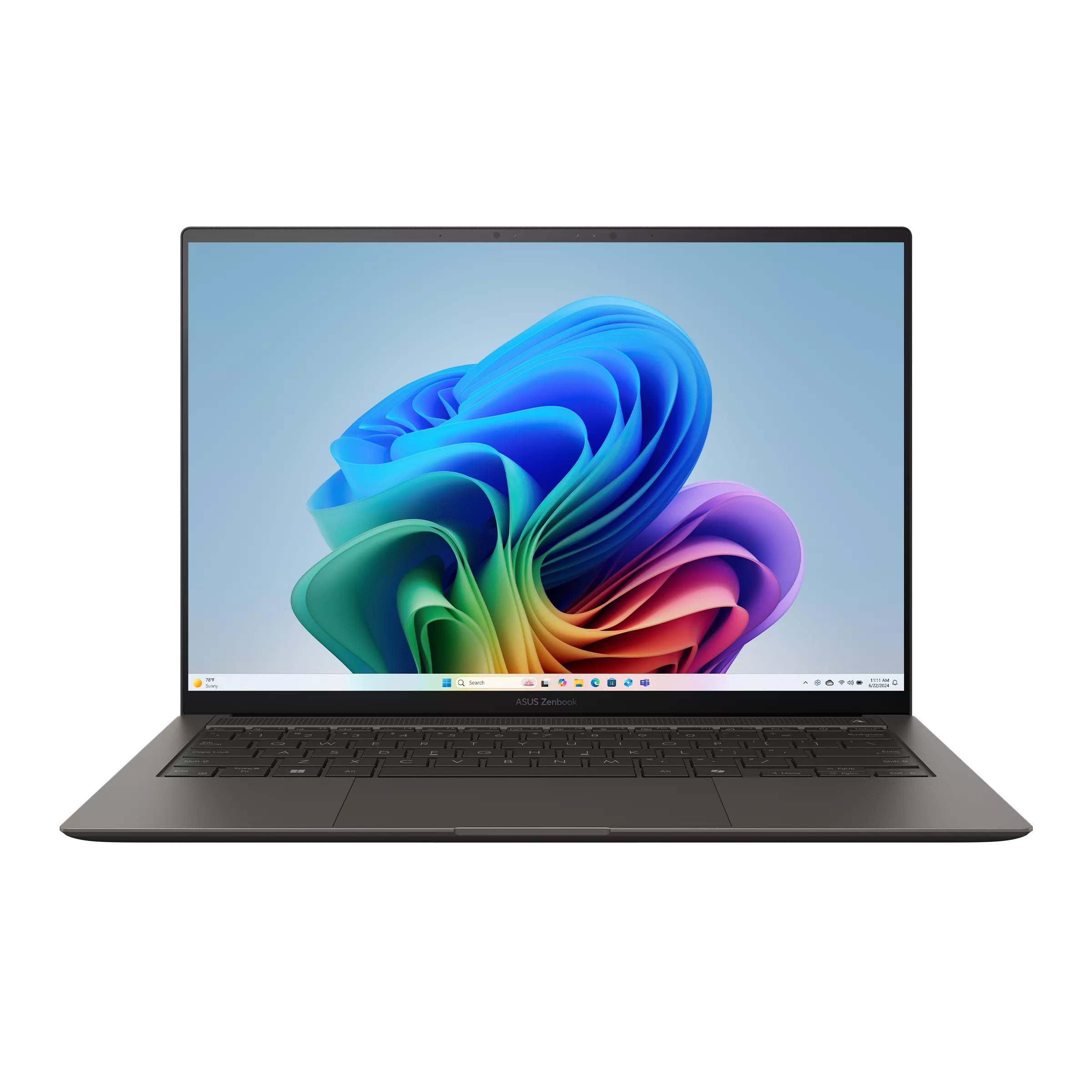
The S14 suits someone who frequently encounters different desk equipment. ASUS documents HDMI, USB-A, two Thunderbolt 4 ports and an audio socket alongside its 14-inch OLED touchscreen and listed 1.20kg mass. Those connections create a practical route to a conventional monitor, keyboard or headset without making every task depend on the same travel hub. The official AA specification column should be kept separate from the older SA model.
For a remote worker using a home monitor through Thunderbolt, native HDMI can remain a separate route for a client presentation. USB-A can accommodate a familiar peripheral while the charger occupies a USB-C connection. This flexibility is useful when workspaces change more often than the software workload.
The processor and Windows edition still need to match the order. Notebookcheck reviewed an Ultra 9 configuration; a US offer using Ultra 7 is a different purchase. Compare those identities before assigning a measurement to a retail machine. The S14's appeal here is its connection arrangement and built-in workspace, with performance assessed for the actual configuration.
Dell Pro 14 Premium PA14250 — Best for an approved company desk
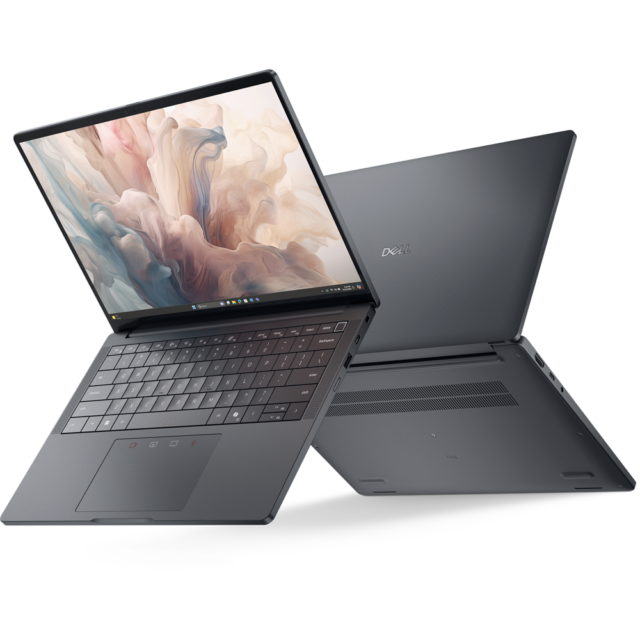
The Dell Pro is worth considering when the employer already has a defined hardware image, approved peripherals and an order process. In that situation, matching the company's working environment can matter more than selecting a laptop solely by its minimum advertised weight. Dell's external-port documentation identifies the connections for the PA14250; use it alongside the exact purchase configuration.
At the primary desk, identify the approved dock and display layout. At the second desk, decide which of those functions must travel and which can stay behind. An employee who can use the same managed setup in two offices has different needs from a freelancer assembling temporary equipment independently.
Include the service entitlement and recovery arrangement in the purchase discussion. A family name alone does not identify a particular repair method. Dell's international-travel guidance makes destination and entitlement checks relevant for overseas assignments. The Pro is most persuasive when the full order fits an operational process that already supports the work.
ThinkPad X1 Carbon Gen 14 — Best for specifying the whole business configuration
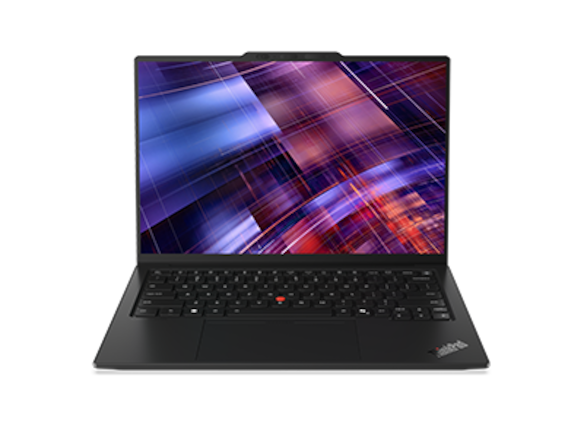
The X1 Carbon gives buyers several decisions that should remain visible in the quotation. Lenovo documents low-power IPS and OLED choices, plus HDMI, USB-A and three Thunderbolt connections. Consult the Gen 14 PSREF for the actual options instead of treating every X1 as the same machine.
This flexibility suits a worker whose home desk uses an external monitor but whose remote days rely on the built-in panel. Screen preference, expected unplugged periods and company requirements can then determine the order together. The useful question is which configuration supports the recurring week, rather than which family has the most impressive single specification.
The independent X1 review illustrates the importance of panel identity: its identified low-power IPS unit differs from the OLED configuration discussed in a later update. Keep the quoted screen and its evidence together. For a two-desk buyer, that discipline also helps ensure that a demonstration unit and the delivered computer have the same working characteristics.
Yoga Slim 7i Ultra Aura Edition Gen 11 — Best for repeated carrying between equipped desks
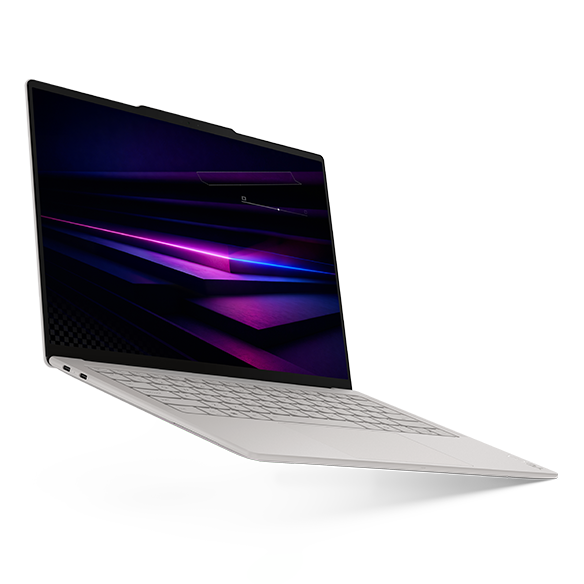
The Yoga is a candidate when both destinations already provide useful equipment and the laptop spends substantial time being carried between them. Its 14IPH11 specification documents a 14-inch OLED touchscreen and three Thunderbolt 4 ports. That combination offers a built-in working surface with an Intel Windows environment and a low published starting mass.
Its connection plan deserves the same attention as its weight. A buyer using HDMI, USB-A or wired analogue audio needs the appropriate additional connection. Include that equipment in the bag and cost calculation. A light computer can remain a good choice with an adapter, provided the complete arrangement is convenient for the user's real routine.
Notebookcheck's identified review unit weighed 978g. Use that measurement for the reviewed configuration, then compare the actual charger and accessories you would carry. The Yoga fits this shortlist through a specific balance of carrying load and screen; the selection should still follow the same software, display and connection checks applied to the other candidates.
LG gram Pro 16Z90U — Best for a larger workspace without a destination monitor
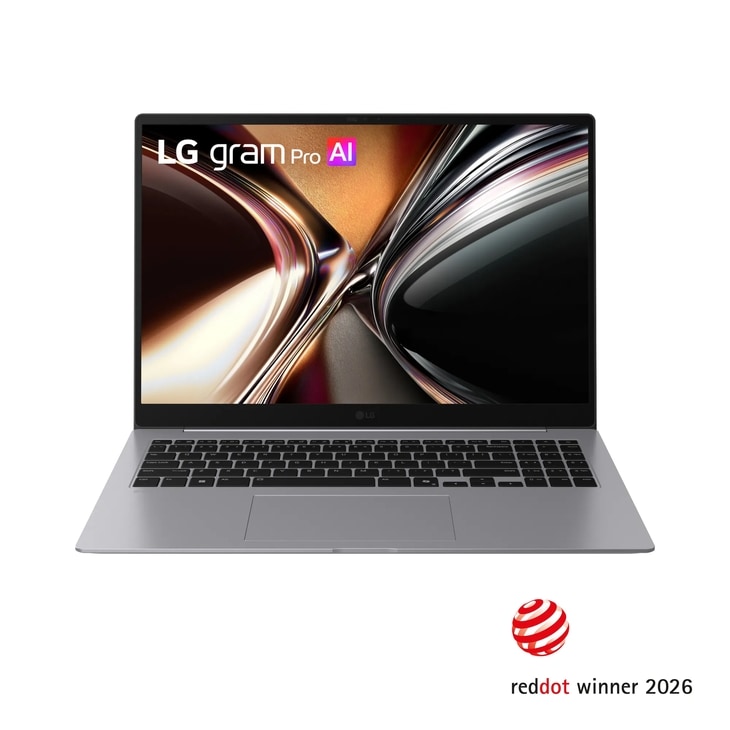
The gram Pro 16 addresses a different problem: spending several evenings at an accommodation desk with no larger monitor. Its 16-inch format deserves consideration when reference material, spreadsheets or side-by-side documents occupy most working hours. Use LG's model documentation to establish the regional panel and connections before ordering.
A larger screen changes the work surface as well as the bag. Measure the desk depth and the space needed for a mouse, notebook and cables. Also check the bag compartment rather than inferring fit from a low weight figure. A light 16-inch computer still has a larger outline than a compact 13-inch model.
Choose this route when the extra display area is used repeatedly. If both desks already have good monitors and the laptop mainly travels closed, a smaller model may answer the week more directly. The gram earns consideration through the work it enables on its own screen, with the final panel and carrying arrangement confirmed locally.
Treat the display connection as a complete chain
A useful monitor plan names every link: laptop port, cable, hub or dock, monitor input, resolution and refresh rate. Connector shape alone does not settle what the combination supports. Record the intended mode before buying an accessory, then compare the relevant documentation for the computer, intermediary and display.
At the primary desk, convenience may justify one cable that connects the monitor and peripherals while supplying power. At a temporary desk, a direct video cable and the laptop's own charger may be easier to troubleshoot. These arrangements can coexist. There is little benefit in transporting a large desk dock when a small, verified connection completes the work at the destination.
The M5 Air provides a useful example of why model-specific instructions matter. Apple's external-display guide explains the supported number of displays and connection arrangements. A previous Mac generation, a different dock or an incompatible cable can change the outcome. Keep the exact computer in the setup record rather than copying a generic “MacBook” recommendation.
For a Windows purchase, identify whether the work needs one external screen or several. Then ask the seller or IT team to confirm the complete topology. A demonstration with a similar laptop is helpful only when the relevant port, display mode and software path match the order. Our hub, dock and direct-connection guide develops these choices for a travelling kit.
Decide what stays at each desk
The most convenient two-workspace setup often duplicates inexpensive stationary equipment. A keyboard, mouse or power supply that stays at a dependable second desk can reduce daily packing. The decision depends on how frequently the desk is used, whether the equipment can be stored securely and whether somebody else needs it between visits.
Make a complete cost comparison. Include the laptop configuration, necessary display connection, charger, headset, protective transport and support. If one model needs an adapter and another does not, compare the actual accessories you would buy. Avoid assigning an invented cash value to a port or assuming that the least expensive computer produces the least expensive useful setup.
For example, a worker attending one established coworking location each week might leave a charger and keyboard there. Someone visiting several clients cannot rely on that arrangement and needs a portable connection plan. The first person can prioritize desk convenience; the second may prioritize fewer separate items in the bag.
Our business-travel working kits cover the packing question in more detail. For days dominated by transport rather than a second desk, use the separate flight-day laptop comparison. The same computer can suit both patterns, but the accessory decision need not be identical.
Rehearse the transition with ordinary work
Before committing to a repeatable setup, perform a short transition rehearsal. Start at the main desk with the applications and windows normally used together. Disconnect, move to battery power, open an important local document and join a test call. Then connect the destination display and peripherals in the order you would use after arrival.
Observe ordinary friction: text scaling, window placement, charging indication, microphone selection and whether the essential device is available without searching for another cable. These checks turn an abstract specification list into a working arrangement. They are especially useful when the same laptop serves both personal and employer-managed equipment.
Prepare a compact fallback for the second desk. Keep an approved way to work on the built-in screen, a known charging route and access to the necessary files. The companion battery, calls and recovery guide explains how those arrangements help when the planned workspace changes.
If the destination is mainly a meeting room, our meetings, ports and hotel-work comparison follows that narrower routine. Pick the repeated task first; let the hardware and accessories follow it.
A worked choice: two equipped desks and one client visit
Consider a consultant who spends Monday and Friday at a home monitor, Tuesday and Wednesday at an established client office, and Thursday visiting a second customer. Both regular desks provide a keyboard and display, but the Thursday room has only HDMI. Most local work consists of documents, browser research and calls.
First confirm the organization's software requirements. If they specify Intel Windows, the Mac option leaves this particular comparison. Then compare the S14's direct HDMI route with the Yoga's lighter carrying proposition plus an appropriate adapter. Keep the X1 in consideration if its selected business configuration and support are useful to the contract. The decision has now become a comparison of three complete arrangements, rather than three brand names.
Next ask where equipment can stay. A charger left at the client office may simplify two commuting days, while a compact charger still travels on Thursday. Record those costs and weights separately. Finally, complete the room-display rehearsal with the exact HDMI path. If the adapter works reliably and carrying dominates the week, the lighter arrangement may appeal. If frequent room changes make direct connections more convenient, the S14 may fit better. The pattern of work supplies the deciding evidence.
Frequently asked questions
Is a lighter laptop always better for two workspaces?
The benefit grows with the amount of carrying. A computer that remains at a desk for most of the week should also be judged on its built-in display, input comfort and connections. Compare the complete travelling kit, including the charger and accessories, then decide whether reducing that load addresses a recurring inconvenience.
Should I buy a dock before choosing the computer?
Begin with the equipment and display modes required at the desk. If an existing employer dock is compulsory, its compatibility becomes a laptop requirement. For a new personal setup, compare the laptop and dock as a combination. Obtain confirmation for the intended external displays, power delivery and peripherals instead of choosing by socket count alone.
Is 32GB memory necessary for ordinary remote work?
Choose capacity for the applications and files used together. A browser-and-document routine differs from local virtual machines or large creative projects. Observe the existing workload and allow for the working life of the purchase. Where memory is fixed, settle the required capacity before ordering; a larger number is useful when the work benefits from it.
Can a larger screen replace a portable monitor?
It can simplify the bag when the built-in display provides enough room for the work. A 16-inch computer may be convenient for recurring evening document work, while a smaller laptop plus a stationary destination monitor can suit equipped desks. Measure both the bag and the actual working surface before choosing between those arrangements.
What should I confirm immediately before paying?
Ask for one complete configuration: model and part number, processor, memory, storage, panel, operating system, supplied charger and service. Verify that the display and accessory plan applies to that configuration. A clear order record makes the two-workspace routine easier to reproduce when the laptop arrives.
Official sources & verification
Manufacturer documentation checked 10 November 2026. Availability, bundles and specifications vary by region and configuration.
- Apple specifications
Manufacturer documentation, identified purchase offer or original review, as attributed alongside the relevant claim. - Notebookcheck review
Manufacturer documentation, identified purchase offer or original review, as attributed alongside the relevant claim. - ASUS specifications
Manufacturer documentation, identified purchase offer or original review, as attributed alongside the relevant claim. - Notebookcheck review
Manufacturer documentation, identified purchase offer or original review, as attributed alongside the relevant claim. - Dell documentation
Manufacturer documentation, identified purchase offer or original review, as attributed alongside the relevant claim. - PA14250 manual
Source matched to the cited hardware, software guidance or original review sample. - international-travel guidance
Source matched to the cited hardware, software guidance or original review sample. - Lenovo configuration
Manufacturer documentation, identified purchase offer or original review, as attributed alongside the relevant claim. - Lenovo specifications
Manufacturer documentation, identified purchase offer or original review, as attributed alongside the relevant claim. - Notebookcheck review
Manufacturer documentation, identified purchase offer or original review, as attributed alongside the relevant claim. - Lenovo configuration
Manufacturer documentation, identified purchase offer or original review, as attributed alongside the relevant claim. - Lenovo specifications
Manufacturer documentation, identified purchase offer or original review, as attributed alongside the relevant claim. - Notebookcheck review
Manufacturer documentation, identified purchase offer or original review, as attributed alongside the relevant claim. - LG specifications
Manufacturer documentation, identified purchase offer or original review, as attributed alongside the relevant claim. - LG specifications
Manufacturer documentation, identified purchase offer or original review, as attributed alongside the relevant claim. - external-display guide
Source matched to the cited hardware, software guidance or original review sample.