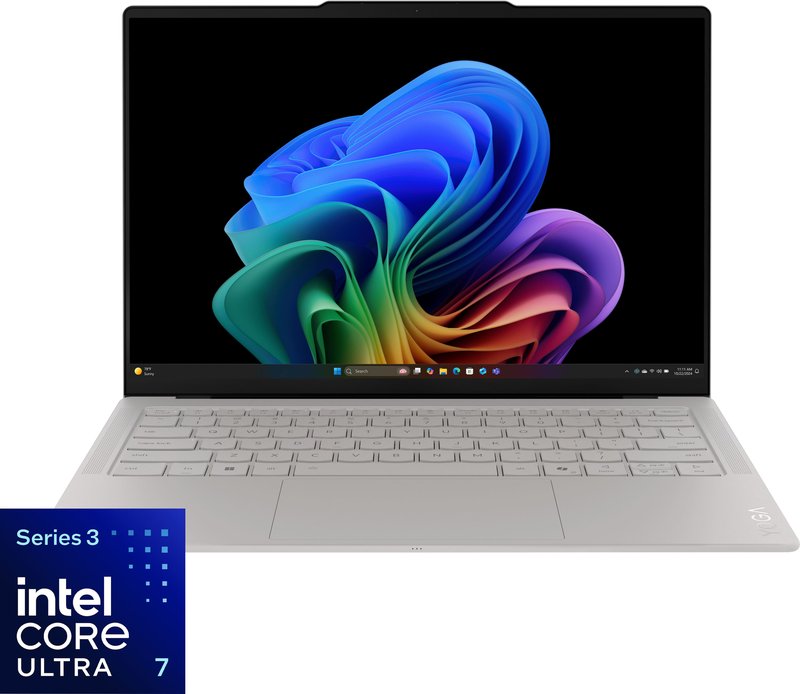
If your home office uses two wired displays and your trips need a full Windows workspace, start with the Lenovo Yoga Slim 7i Ultra Aura Edition 14-inch Gen 11. The US 32GB/1TB reference has three Thunderbolt 4 ports and a 975 g starting body. Price it with the actual dock or two video connections. The ThinkPad X1 Carbon and the Zenbook S 14 are strong alternatives when one screen can leave through HDMI and your desk already uses USB-A. Lenovo product specifications · US configuration page.
Buying around a dock starts with a pencil sketch of the desk. Write the resolution and refresh rate of each intended display, the cable and the endpoint. Add the laptop’s screen if you need to use it for meetings. Then work out where the power source and camera belong when the ordinary workday is running.
The shortlist at a glance
Confirm company access, the actual app and all its compulsory add-ins first. Test local performance independent of the connection, then repeat with a real remote desk and the agreed data route. If a charger or dock has to work in both configurations, keep the mode and test result with the quote. That is a better comparison basis than counting advertised capabilities.
| US reference | Device mass | Screen | Battery | Best fit in this comparison |
|---|---|---|---|---|
| Yoga Slim 7i Ultra | 975 g starting | 14-inch 2880 × 1800 OLED touch | 75 Wh | One 32GB Windows machine for home screens and a light bag |
| Zenbook S 14 | about 1.2 kg listed for UX5406SA | 14-inch 2880 × 1800 OLED touch on the reference | 72 Wh | One built-in HDMI path and familiar Windows software |
| ThinkPad X1 Carbon Gen 14 | under 1 kg at family start | 14-inch WUXGA touch on this reference | 58 Wh | An employer-approved dock and a wired troubleshooting option |
| MacBook Air 13 M5 | 1.23 kg listed | 13.6-inch 2560 × 1664 Liquid Retina | 53.8 Wh | Two extended displays for a Mac-native workflow |
| Framework Laptop 13 | 1.30 kg listed | 13.5-inch 2256 × 1504 matte option | 61 Wh | Configuring screen and charging ports around an existing room |
| LG gram 14 | 2.47 lb listed, about 1.12 kg | 14-inch 1920 × 1200 IPS on the US model | 72 Wh | Straightforward dual-screen office work with native desk links |
Consider US laptop bodies with a reference or starting mass around 1.50 kg or below, then weigh the complete travel or teaching kit separately. For detachable models, measure the tablet alone and again with every accessory needed for the day. This comparison uses the manufacturer’s stated figures where available. Panel, finish and component changes can move the weight. Battery capacity in watt-hours describes stored energy, and runtime depends on the workload and the configuration tested.
For the broader shortlist, compare the same order with the battery, calls and recovery comparison. Keep the preferred candidate’s order code beside the review so any difference in screen or connectors is easy to recognise.
Draw a route for each screen
Suppose monitor A runs 3840 by 2160 at 60 Hz and B runs 2560 by 1440 at 60 Hz. Write down both expected modes and the dock model, and look for explicit support for that combination on the intended OS and host. An HDMI splitter typically sends the same picture to both displays. For separate desktop space, verify the available output routes and extend the desktop. Where the second display can attach by its own laptop port, that is a useful isolation test.
Display resolution and refresh together determine what you ask of the connection. Color mode, cable and hub configuration also matter. Use a proven connection for both screens and take time to find which connection to swap if one is black. Save a picture of the working layout and physically label the outgoing dock cable so it can be restored after packing.
Check the return from a trip as part of the demo
Plug the chosen desk kit back in after shutting the laptop down, waking it and switching to a new network. Check whether the taskbar, meeting camera and microphone stay where you expect. Give one display an approved work application or a chart and move it back and forth between monitors at the scaling you use. Pay for a more predictable dock only after that particular annoyance has been reproduced.
Repeat with the laptop unplugged from the dock and a single monitor at a separate desk. Take a 35-minute meeting with the actual headset, share the approved test window and close it before switching rooms. The dual-screen home station and the simpler travel station should both allow you to identify which window leaves the laptop.
The decision changes when your work centers on a Reliable Interview Setup on Hotel Wi-Fi. Check which part of the kit can carry over into that routine.
Write the power path underneath the video diagram
A dock may advertise an input wattage and offer a different amount at the computer. Read its expected host output with the power supply you intend to use. For the Slim, compare the planned route with Lenovo’s documented 65W adapter. Check the computer’s charging indication under ordinary load while both screens and camera are present. A working picture is one signal. Sustained power and responsiveness take their own trial.
If the desktop already supplies power from a monitor, identify which side of the machine the cable reaches. Put the travel charger in a consistent part of the bag. It can be simpler to use independent power and video at the travel desk than carrying the whole home dock and its brick.
Compare the desk cost and the weight you take away
Suppose the work budget leaves $180 for a dock and cable set after a laptop quote. If a confirmed second cable costs $45 and the dock costs $160, you need $25 more than the accessory allowance. The direct HDMI alternative may reduce the expected dock cost if it satisfies the camera and data needs. Include the complete cost for the desk that will really stay at home and the smaller connection you travel with.
Check what the computer restores after the first Monday back
Make a diagram of where the call controls, document and chat window belong on the 4K and QHD displays. Practice leaving the computer asleep during a transport simulation and then returning to the home desk. Watch what happens to the windows after the first wake. Restore the actual work app before timing the return. A compact laptop can be an excellent host even if one common dock needs to be replaced to get the desired display combination.
Use the real physical placement, too. A 4K display with high scaling can make the usable workspace closer to the other monitor than the raw numbers suggest. Move a few windows while the laptop is set up as a third display. Ask a teammate what they see when you share one application window at the new scaling. If one monitor requires an independent output, the MacBook Air and the direct HDMI Windows candidates deserve their own complete trials under the supported modes.
Save the simplest layout from that exercise as the travel profile. Keep a clear instruction for the point at which a missing display leads you to change arrangements. A portable one-screen layout can be efficient for approval and transfer, while your dual-screen desk does most of the detailed work. The criteria decide which trade-off has a weekly cost in time and cable handling.
Verify both monitor settings in the operating system after the test. Name which physical cord to move if one screen disappears. Even at home a clear independent connection can be a cheap improvement, and it leaves the diminutive travel adapter available in the bag.
6 models and the configuration to price
1. Yoga Slim 7i Ultra — Best for one 32GB Windows machine for home screens and a light bag
Configuration and connections. 14-inch Gen 11, US 83QK0000US: Core Ultra 7 355, integrated Intel Graphics, 32GB LPDDR5X and 1TB SSD. Three Thunderbolt 4 USB-C ports. HDMI, USB-A and wired audio require a suitable adapter. Specifications · US buying information.
Yoga is a strong starting point with a proven dual-monitor configuration. Allocate one port for desk power or the validated dock and document an independent output if the dock will not drive your combination. Leave the smaller travel adapter elsewhere in the quoted kit.
In Notebookcheck’s review the 32GB Core Ultra 7 355 review unit weighed 978 g and ran for 10 hours 36 minutes in the site’s Wi-Fi web-browsing test. Use that as a reference for light browsing; video meetings, tethering and sustained work have different demands. Confirm the full order code. The adjacent Yoga Slim 7i without Ultra is a separate product and may have a different port layout. Notebookcheck Yoga Slim 7 Ultra review.
2. Zenbook S 14 — Best for one built-in HDMI path and familiar Windows software
Configuration and connections. US UX5406SA-PS79T: Core Ultra 7 258V with Intel Arc graphics, 32GB and 1TB SSD. Two Thunderbolt 4, USB-A, HDMI and headphone audio on the reference. Specifications · US buying information.
The included HDMI connector on the reference S 14 lets you test one monitor without depending on the dock video chain. Attach the other screen to the selected Thunderbolt route. The 32GB configuration and flexible display attachment are useful if the two workplace screens are already paid for.
The reference keeps a direct HDMI path and pairs 32GB memory with an x86 Windows platform. Its OLED panel is glossy, so check readability with bright windows in the positions you normally use. Match the US suffix and the touchscreen line. ASUS lists the later UX5406AA on the same product page, with its own processor choices. Model documentation.
3. ThinkPad X1 Carbon Gen 14 — Best for an employer-approved dock and a wired troubleshooting option
Configuration and connections. US 21V700AQUS reference: Core Ultra 7 355, Intel Graphics, 32GB LPDDR5X and 1TB SSD. Three Thunderbolt 4, USB-A, HDMI and a headset jack on the family. Specifications · US buying information.
The X1 Carbon is worth prioritizing when an IT department already supports the exact model with a two-screen setup. Find the supported combination from the actual rollout. The built-in HDMI and USB-A preserve ways to attach a screen or camera when the dock has an issue.
Native HDMI and USB-A give this platform a route to a wired display and a legacy USB peripheral while a USB-C port supplies power. The quoted panel and support term are separate buying decisions. Require the written quote to identify the display, operating-system edition and support entitlement. Fleet eligibility depends on the order the employer approves. Model documentation.
4. MacBook Air 13 M5 — Best for two extended displays for a Mac-native workflow
Configuration and connections. US 13-inch M5, choose 24GB unified memory and 1TB SSD for this comparison. MagSafe 3, two Thunderbolt 4 USB-C ports and a headphone jack. An HDMI display needs the appropriate cable or adapter. Specifications · US buying information.
Apple allows two external displays with the built-in screen on the M5 Air within its mode limits. Use the supported dock or separate cables, check the desired resolutions together and price the display accessories. Confirm the Windows-format project can be completed on macOS if colleagues depend on it.
Apple documents up to two external displays alongside the built-in display, within the supported resolution and refresh limits. MagSafe can handle power without occupying a Thunderbolt port. Confirm the Mac version of the mandatory application, add-in or endpoint tool with its vendor or your administrator before ordering. Model documentation.
5. Framework Laptop 13 — Best for configuring screen and charging ports around an existing room
Configuration and connections. US DIY Ryzen AI 5 340 with Radeon 840M, configure with 32GB DDR5, 1TB NVMe and a licensed OS. Four modular bays. Choose USB-C, USB-A, HDMI or other Expansion Cards and check their supported bay positions. Specifications · US buying information.
The Framework’s HDMI and USB-C options allow a deliberately mapped cable layout. Check the bay support information and allocate one port to power. The appeal is the fit with equipment you already have and a route to revise it if a future monitor changes.
Replaceable memory and configurable ports can matter across several years of use. A purchased set of modules still requires the buyer to allocate bays for power, the screen and each attached device. Quote memory, SSD, OS, power adapter and selected cards explicitly for a DIY order. Price the prebuilt option separately if setup time matters. Model documentation.
6. LG gram 14 — Best for straightforward dual-screen office work with native desk links
Configuration and connections. US 14Z90T-G.AAB2U1, Core Ultra 5 226V, Intel Arc graphics, 16GB RAM and 512GB SSD. Two Thunderbolt 4, two USB-A, HDMI and a headphone jack. Specifications · US buying information.
Check the LG’s listed HDMI and Thunderbolt options with the two displays and the office load you actually use. When the 16GB build can manage the call, browser and workbooks, the direct links can make the full budget attractive. Separate capacity and the ports in the test.
The large list of native connectors suits ordinary office or research peripherals. The chosen 16GB/512GB combination is best evaluated with the simultaneous documents and applications that stay open during a busy session. Compare a 16GB configuration with your actual peak workspace and how much of the 512GB disk must be kept free. Read the full 14Z90T suffix on the quote. Model documentation.
A short acceptance test for both workplaces
Try one dock reconnect and a simulated travel day. Prepare a 4K screen, a QHD screen and a call with a test document open. Use the same source materials on each system and ask the same person to check the end result. Start with the charger, network and version of the software you expect to have at the destination. Record what needs permission or an approved alternative before counting any device as eligible. Put the results for Yoga Slim 7i Ultra and Zenbook S 14 beside one another so the acceptance decision follows the actual scenario.
For the second pass, keep the dual displays extended while the laptop charges and then hand the same task over to a single screen. Use an ordinary supported way to recover the work so you can repeat it later without assistance. Note the time spent restoring the accessory or software and the time left to finish the job. The useful benchmark is that the dock restores the verified modes and correct audio route after disconnect and wake. Keep a copy of the settings for the configuration that passes, including changes to display scaling, input and power.
Have an independent video connection or the known single-screen layout ready during the test. Change only one part of the setup at a time after a problem. A device trial should tell you whether replacing the computer would solve it, or whether a different cable, application setting or room arrangement would do the job. Consider the practical consequence when comparing candidates: native HDMI becomes more valuable when the exact dock cannot present two appropriate modes to your computer. Keep the published capability beside your observation so a future purchase can reproduce the working setup.
Charging, software and support in the purchase quote
Use a planning ceiling of $2,000 before tax for this example. If the line for the verified dock plus the right display cables reserves $155, the laptop has $1,845 of room. Compare the retailer or school quotes using the same storage, included equipment and support assumptions. These amounts illustrate the arithmetic of a purchase decision. The linked US listings and written offers provide the actual pricing and availability.
For every quote, record the exact model code, OS edition, panel, installed memory and size of the SSD. List any equipment your institution or employer supplies separately. For an older generation still offered by a reseller, ask how much time remains on the coverage you are buying and how you would replace a bundled accessory. Use the documented requirements of one dock reconnect and a simulated travel day to decide which configuration can drop an accessory or start with less local capacity.
Documentation for the actual setup
Microsoft’s monitor troubleshooting guide explains the Windows Extend setting and the limits of ordinary splitters. Set up the display in the mode used for the job, record the path that works and verify that behavior after unplugging. When a particular room has fixed display equipment, ask its operator which input modes have been checked. Microsoft Windows external-monitor guide.
Apple documents support for up to two external displays plus the built-in display on the M5 MacBook Air, within the supported modes. Check the refresh rate and resolution of both displays before buying a dock or a long cable. Rehearse connecting those screens under macOS, especially when they used to belong to a Windows desk. Apple MacBook Air external-display limits.
Notebookcheck measured 978 g on its Lenovo Yoga Slim 7 Ultra 14IPH11 review unit, with a Core Ultra 7 355 and 32GB of memory. The publication’s Wi-Fi browsing test lasted 10 hours 36 minutes. Read the brightness and workload context before applying the number to travel. An export, an external screen and a long call can draw energy differently. Notebookcheck Yoga Slim 7 Ultra review.
For a second comparison of a full working day, see month-End Close Between Home and Client Site. Use the same quote when the equipment requirements overlap.
Frequently asked questions
Do two monitor sockets on a dock guarantee two separate desktops?
Check the dock’s host compatibility and supported display modes. Physically test both screens in Extend mode and use an independent connection to diagnose the second screen if both first display the same image.
Can I rely on one U.S. dock review for my setup?
Compare the review’s host, operating system and display settings with yours. Test the actual resolution, wake behavior and power output with the device and cable you will use.
Is a dual-monitor desk worthwhile for a frequent traveler?
It can improve long stationary sessions when you can use the extra space. Make sure all critical work can continue on one screen while traveling and keep that simpler profile tested.
Sources
- Lenovo Yoga Slim 7i Ultra Aura Edition specifications
- Yoga Slim 7i Ultra US product and purchase details
- ASUS Zenbook S 14 UX5406SA specifications
- Zenbook S 14 US product and purchase details
- Lenovo ThinkPad X1 Carbon Gen 14 Aura Edition specifications
- ThinkPad X1 Carbon Gen 14 US product and purchase details
- Apple MacBook Air 13-inch M5 specifications
- MacBook Air 13 M5 US product and purchase details
- Framework Laptop 13 AMD Ryzen AI 300 specifications
- Framework Laptop 13 US product and purchase details
- LG gram 14 14Z90T-G.AAB2U1 specifications
- Microsoft Windows external-monitor guide
- Apple MacBook Air external-display limits
- Notebookcheck Yoga Slim 7 Ultra review