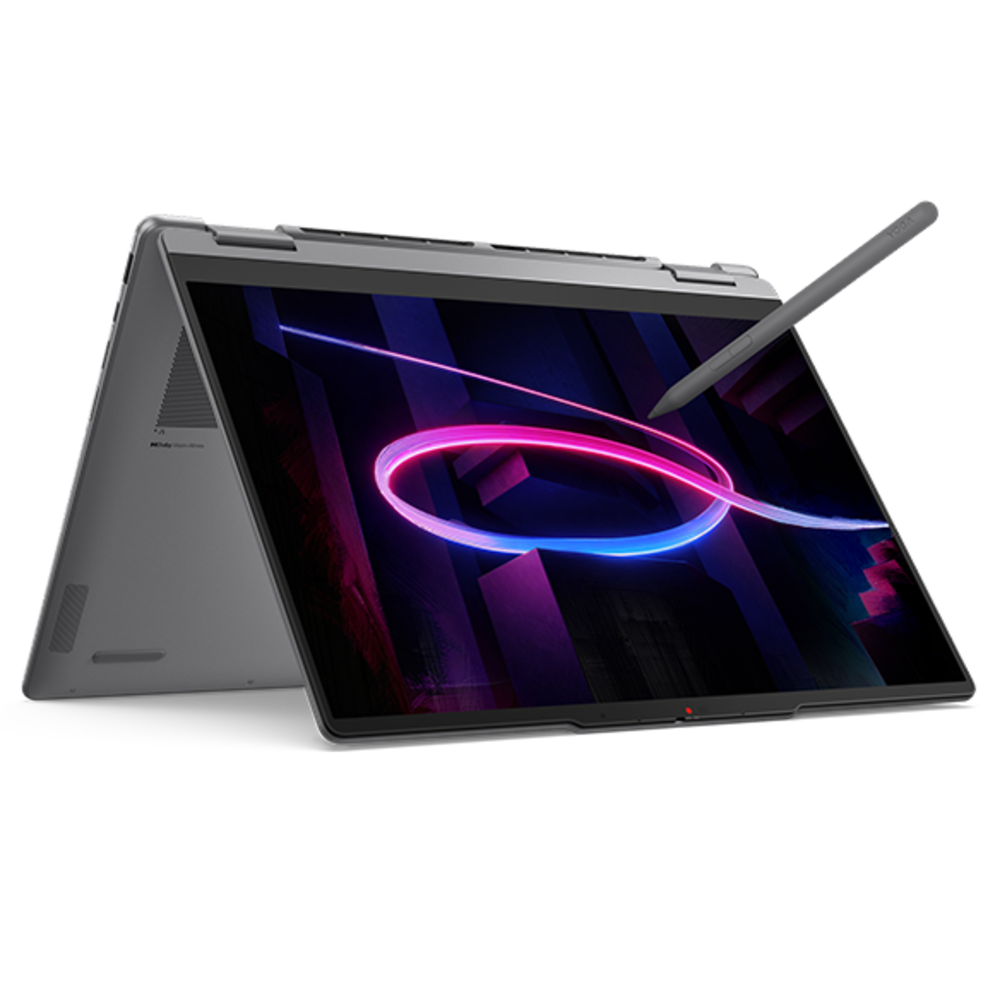
Start with the Lenovo Yoga 7i 2-in-1 Aura Edition 14-inch Gen 11 if you’re a teacher who prepares and returns Windows-based feedback from the same machine. It folds for ink and keeps an attached keyboard for labels and comments. Verify the active pen on the exact model before buying. A Surface Pro 12 is a good comparison when you spend long stretches carrying the tablet itself and your marking software supports Windows on Arm. Lenovo product specifications · US configuration page.
The end of a marking session is a file the student can read in their own approved viewer. Some readers need searchable text, zoomable type or a typed explanation of marks made with a pen. Build the comparison around the receiving view and the institution’s format requirements.
The shortlist at a glance
Start with the class accommodation, the institution’s device and app rules and the equipment available in the assigned rooms. Then include the exact pen, whatever actually powers the system and the equipment that connects it to the display. Verify the student-facing result during a dry run. Screen resolution and weight matter after the lesson can be completed in the real environment.
| US reference | Device mass | Screen | Battery | Best fit in this comparison |
|---|---|---|---|---|
| Yoga 7i 2-in-1 | 1.38 kg aluminium starting; 1.40 kg leather-trim starting | 14-inch touch, WUXGA IPS or OLED options per PSREF | 70 Wh | Repeatedly switching between a pen and a full keyboard |
| OmniBook Ultra Flip 14 | 1.349 kg starting | 14-inch 2880 × 1800 OLED touch | 64 Wh | High-resolution annotation when a USB-C desk is available |
| ThinkPad X1 2-in-1 Gen 10 | starting weight varies by processor and build | 14-inch touch; panel varies by SKU | 57 Wh | An institution-supported grading laptop and keyboard |
| Surface Pro 12 | 686 g tablet body only | 12-inch 2196 × 1464 touch | see Microsoft runtime methodology | Tablet-first marking with a separately priced keyboard |
| OmniBook X Flip 14 | 1.40 kg at family start | 14-inch touch, panel options vary | 59 Wh | An affordable direct-connection alternative with a confirmed pen |
Consider US laptop bodies with a reference or starting mass around 1.50 kg or below, then weigh the complete travel or teaching kit separately. For detachable models, measure the tablet alone and again with every accessory needed for the day. This comparison uses the manufacturer’s stated figures where available. Panel, finish and component changes can move the weight. Battery capacity in watt-hours describes stored energy, and runtime depends on the workload and the configuration tested.
For the broader shortlist, compare the same order with the guide to carrying annotations into an export. Keep the preferred candidate’s order code beside the review so any difference in screen or connectors is easy to recognise.
Build an example that exposes the handoff
Select a fictional one-page assignment with a graph, dense paragraph and blank area for working. Write two marks with the pen and add three typed comments, at least one referring to the correct question and page. Export using the institution’s approved application and open the received copy in the viewer students are expected to use. Try search, zoom and navigation before deciding how much of the feedback should remain as ink.
Check the institution’s approved accessibility practice. Keep the meaning of an ink mark in a short typed comment when it carries a substantive instruction. Verify reading order or intact searchable text where required. A clean export can be useful for protecting a version that should remain fixed. Ask the school for the relevant accessibility and data procedure before changing how student work is returned.
Time the steps around the actual marking
Suppose you have 24 scripts and each takes four minutes to read and comment. That is 96 minutes before naming, exporting and confirming each return. If those last steps add 45 seconds per script, they bring the work to 114 minutes. A trial can tell you which steps can be made easier while preserving the check that prevents sending the wrong file. Keep a small set of fictional submissions in a folder and repeat the full process in laptop and folded modes.
Think about the keyboard even if ink is your main input. It should be easy to surface when a careful explanation needs to be typed. On a fixed hinge, check that the folded keyboard rests on a stable surface while drawing. On a detachable, test the stand and the space required to reattach the keyboard at the table where you mark.
The decision changes when your work centers on 1080p Projectors and Separate Classroom Audio. Check which part of the kit can carry over into that routine.
Check pen convenience and the body you will hold
Use the matched and charged pen for ten minutes. Check end-to-end export in the exact app. Confirm the position of your palm, whether the app handles pen and touch the way you expect and where to put the pen safely when moving between rooms. None of these tests should rely on similar-looking pens across product families.
If you plan to carry the computer between locations, weigh the body, pen, cover and charger together. A detachable base figure may be much lower when the keyboard is off. Measure the kit that stays attached on a marking day, and compare it with the attached keyboard that can be used immediately when moving from a written note to an extended typed comment.
Keep versions and authorised access clear
Use nonsensitive test papers to rehearse one update after a submitted file has already been returned. Confirm which filename or system status should be read by the recipient. Ask whether feedback requires editable comments, a flattened copy, a second summary or a tagged resource. Check whether the annotation feature supports the expected output. Run that test from the approved account before using a device with live coursework.
Choose how the feedback remains useful after download
Separate comments that are useful while you grade from comments the student needs to read independently. An underline or star can point you to a part of the page, while a typed short instruction can explain what to revise. On the loaner or demo device, try both types on the same sentence. Ask a colleague to locate the instruction without prior context. When the paper uses a lot of mathematical notation, check that search returns the text you intended rather than a visually similar character.
Try the same file in the actual assignment system after attachment. A displayed preview can behave differently from a downloaded copy in the school’s viewer. Verify that both show the page you referenced and that neither obscures the correction with a sidebar. If school rules require a tagged or a plain text document, check the approved workflow and keep a deliberately usable version. A pen system is appropriate when its ink remains meaningful as part of that workflow.
Compare how much table space your hand takes while writing. One teacher might use the Yoga keyboard briefly after each written correction, while another may mark seven scripts in a row on the Surface and type at the end of the block. Ask who will read which format after it is returned. Try using a stand and power cable during a marking break so enthusiasm about a device’s tablet mode does not hide an awkward desk layout.
There is also value in using a simple file naming convention that staff can explain across devices. Put the fictional assignment identifier before the date and write a one-line summary of the feedback location. Test how the teacher checks the received file on the other side. If a browser screen or an accessible template provided by the school handles most of that work, compare a lower-priced Intel X Flip to a more detailed OLED system at equal text size. Spend for visible evidence of faster or clearer marking within the same process.
After that trial, swap who creates and checks the accessible version. Ask the second teacher to find an example of a typed correction and describe which revision they would use. Include any license cost and the work of adjusting the template in the shopping comparison.
5 models and the configuration to price
1. Yoga 7i 2-in-1 — Best for repeatedly switching between a pen and a full keyboard
Configuration and connections. 14-inch Intel Gen 11 (14IPH11), US family; compare Core Ultra 7 355, 32GB and 1TB where offered. HDMI, USB-A, two Thunderbolt 4, microSD and headset audio. Check the specific Yoga Pen in the bundle. Specifications · US buying information.
The Yoga is a good first try for teachers who draw short corrections and type longer feedback. Keep the same set of sample files for both modes. Confirm the pen generation, charger and exact IPS or OLED specification on the order.
The attached keyboard folds behind the screen for pen work and returns for preparing a deck. The built-in HDMI and USB-A simplify a common projector-and-clicker kit, with charging left on USB-C. Confirm the pen generation and box contents on the US order. Ask for the supplier’s replacement pen part number if staff share the device across rooms. Model documentation.
2. OmniBook Ultra Flip 14 — Best for high-resolution annotation when a USB-C desk is available
Configuration and connections. US 14-fh0000 family, compare Core Ultra 7 258V, Intel Arc, 32GB and 1TB where offered. USB-C for the display path, plus a headset jack. Budget the optional HP rechargeable MPP 2.0 pen as needed. Specifications · HP US model information.
The Ultra Flip’s OLED lets you inspect a detailed page at useful zoom if glare is manageable. Price the compatible HP pen and verify how easily you can charge it during the week. Fit the USB-C adapter into the quote if a separate display is part of regular grading.
A compact convertible with a high-resolution touch display fits someone who prepares diagrams at the screen and can standardize on a USB-C display route. An older projector adds an adapter to the order. Match the HP pen listed for the 14-fh model and check the USB-C-to-HDMI output at the screen or projector. Model documentation.
3. ThinkPad X1 2-in-1 Gen 10 — Best for an institution-supported grading laptop and keyboard
Configuration and connections. US 21NU00KXUS reference; verify the quoted Intel processor, display and memory under that full model code. HDMI, USB-A and Thunderbolt documented. Lenovo Yoga Pen is available with selected builds. Specifications · US buying information.
The X1 convertible is worth pricing if the school provides the app, account and hardware support on that exact model. Use the required export workflow and approved local storage. Check the supplied pen and whether a standalone replacement is easy to obtain.
This is the convertible ThinkPad with a built-in wired display route. It is a useful option when a department needs a supported fleet device and values a matched pen and classroom dock. Confirm the university’s procurement and imaging agreement on the exact serialised model. Verify pen entitlement and the keyboard layout on the supplied quote. Model documentation.
4. Surface Pro 12 — Best for tablet-first marking with a separately priced keyboard
Configuration and connections. US Snapdragon X2 Plus, choose 24GB memory and 512GB UFS; add the 12-inch keyboard and compatible Slim Pen. Two USB-C ports. Add the detachable keyboard, pen and display adapter separately as needed. Specifications · US buying information.
This setup is useful when a large share of marking happens on a small flat workspace after the keyboard comes off. Confirm the approved viewer and annotation app on the X2 Plus model. Add the keyboard, Slim Pen and protection to the carrying and price comparison.
The genuine advantage is the option to take only the tablet and pen to a flat writing surface. At a desk the keyboard and portable stand arrangement change the space and weight calculations. Confirm the weight and price of the keyboard, pen, stand clearance, adapter and charger together. Validate Windows on Arm with classroom software and hardware. Model documentation.
5. OmniBook X Flip 14 — Best for an affordable direct-connection alternative with a confirmed pen
Configuration and connections. US Intel 14-fm0000 family; price an exact Core Ultra 5 226V, 16GB and 512GB build if offered. HDMI, USB-A and USB-C on the Intel family. Pen is an order-line check. Specifications · US 14-fm0047nr buying example.
The X Flip makes sense if the school has a tested copy of its PDF software and a separate HDMI screen when needed. Price the pen and confirm the laptop’s exact Intel configuration. Open the busiest marking exercise on the quoted memory before buying it.
A wired display path and folding keyboard offer a useful benchmark for classroom value. A budget quote becomes comparable after it includes the correct pen and the required support term. Verify the Intel fm-series product number and included pen. A listing covering the whole X Flip range can also describe different AMD or later variants. Model documentation.
A practice session you can repeat at school
Try a returned practice script from the recipient’s view. Prepare a synthetic sample with a typed paragraph, an ink note and a labelled figure. Use the same source materials on each system and ask the same person to check the end result. Start with the charger, network and version of the software you expect to have at the destination. Record what needs permission or an approved alternative before counting any device as eligible. Put the results for Yoga 7i 2-in-1 and OmniBook Ultra Flip 14 beside one another so the acceptance decision follows the actual scenario.
For the second pass, export a duplicate, then search and magnify it in the approved recipient viewer. Use an ordinary supported way to recover the work so you can repeat it later without assistance. Note the time spent restoring the accessory or software and the time left to finish the job. The useful benchmark is that the student can identify the point of the mark, locate typed feedback and read the intended file. Keep a copy of the settings for the configuration that passes, including changes to display scaling, input and power.
Have a typed summary or approved accessible text version checked by the teacher ready during the test. Change only one part of the setup at a time after a problem. A device trial should tell you whether replacing the computer would solve it, or whether a different cable, application setting or room arrangement would do the job. Consider the practical consequence when comparing candidates: an app with a checked export may matter more than a more elaborate pen spec. Keep the published capability beside your observation so a future purchase can reproduce the working setup.
Price the classroom-ready kit
Use a planning ceiling of $1,500 before tax for this example. If the line for the exact pen, replacement option and format support the school approves reserves $180, the laptop has $1,320 of room. Compare the retailer or school quotes using the same storage, included equipment and support assumptions. These amounts illustrate the arithmetic of a purchase decision. The linked US listings and written offers provide the actual pricing and availability.
For every quote, record the exact model code, OS edition, panel, installed memory and size of the SSD. List any equipment your institution or employer supplies separately. For an older generation still offered by a reseller, ask how much time remains on the coverage you are buying and how you would replace a bundled accessory. Use the documented requirements of a returned practice script from the recipient’s view to decide which configuration can drop an accessory or start with less local capacity.
Documentation for the actual setup
Microsoft’s PowerPoint export guidance describes saving a static version in PDF. Compare the exported document with the source where notes, media and fine text matter. A page-by-page viewing check helps establish if that file can serve as the agreed fallback or handoff copy. Microsoft PowerPoint PDF export guide.
Microsoft’s Presenter View documentation distinguishes the speaker’s tools from the slide the audience sees and describes how presentations can use annotation. Try a short deck with an observer on both screens. If the room is wired to mirror, rehearse a version you can present from the audience view. Microsoft PowerPoint Presenter View instructions.
Microsoft advises checking support for software and peripherals on an Arm-based Surface. A standard accessory and a specialised device can have different driver needs. Try the classroom or research app with the actual peripheral attached and collect the institution’s device-approval answer before the order. Microsoft Surface Arm peripheral guidance.
Microsoft’s monitor troubleshooting guide explains the Windows Extend setting and the limits of ordinary splitters. Set up the display in the mode used for the job, record the path that works and verify that behavior after unplugging. When a particular room has fixed display equipment, ask its operator which input modes have been checked. Microsoft Windows external-monitor guide.
For a second comparison of a full working day, see hybrid Lessons with a Clicker and Wired Microphone. Use the same quote when the equipment requirements overlap.
Frequently asked questions
Is changing from handwritten comments to typed feedback required?
Use the institution’s accessibility procedure and the student’s approved accommodations. A typed explanation alongside meaningful ink can make a remark easier to search, read or revisit.
Does a tablet-only weight reflect a full grading kit?
Add the keyboard if you type paragraphs, the pen you use and the charger and protection. You can weigh both the writing unit and the full kit if they travel differently through the week.
How do I know comments will display correctly?
Export a practice page and open it from the recipient’s side using the intended reader. Check ink, search and text zoom in that copy before bulk marking.
Sources
- Lenovo Yoga 7i 2-in-1 Aura Edition specifications
- Yoga 7i 2-in-1 US product and purchase details
- HP OmniBook Ultra Flip 14-fh0000 specifications
- HP US OmniBook Ultra Flip 14 model information
- Lenovo ThinkPad X1 2-in-1 Gen 10 Aura Edition specifications
- ThinkPad X1 2-in-1 Gen 10 US product and purchase details
- Microsoft Surface Pro 12-inch (2nd Edition) specifications
- HP OmniBook X Flip 14-fm0000 specifications
- HP US 14-fm0047nr buying example
- Microsoft PowerPoint PDF export guide
- Microsoft PowerPoint Presenter View instructions
- Microsoft Surface Arm peripheral guidance
- Microsoft Windows external-monitor guide