For graduate teaching assistants, shortlist the Lenovo Yoga Slim 7i Ultra Gen 11 when low carrying weight and an approved USB-C presentation setup suit the working day. Choose the ASUS Zenbook S14 UX5406AA when native HDMI and USB-A simplify changing classrooms. The MacBook Air 13-inch M5 fits an established Mac teaching workflow, while the ThinkPad X1 Carbon Gen 14 Aura Edition is worth considering when a department can provide a supported configuration and service route. Start with 16GB or 32GB according to the actual teaching and research workload; the comparison below uses 32GB/1TB planning selections to keep capacity broadly consistent. The deciding evidence is whether your slides, marking tools, meeting application and room connections work together, rather than a processor name or an isolated weight figure.
Which lightweight laptops are good for graduate students who also teach?
Teaching adds a second working life to a graduate student’s laptop. The same machine may hold a dissertation draft in the morning, display seminar slides at noon and return annotated assignments to a learning platform in the evening. A useful shortlist therefore starts with transitions: moving from a private workspace to a public screen, from online references to a room without dependable connectivity, and from a long marking session to a meeting with a student.
Write down the three teaching tasks that recur every week. Identify the application, document format and physical connection required for each. A literature seminar may need slides and a PDF; an engineering tutorial may depend on a particular Windows application; a language class may require sound, captions and a specific keyboard layout. Ask the course leader which components are mandatory and which can be changed. This prevents a purchase from solving a general student problem while missing the actual teaching assignment.
The selections here are editorial judgments drawn from linked specifications and software guidance. They are not a new comparative performance test. For a wider starting point, see our graduate-student laptop comparison. If analysis environments dominate the degree, use the companion R and Python research laptop guide before deciding how much teaching convenience should influence the purchase.
Four lightweight laptops compared for graduate teaching
The table holds the intended memory and storage capacity broadly constant; it does not imply equal processors, screens, operating systems, warranty terms or prices. These are configuration selections for comparison, not a statement that every retailer stocks every combination. Obtain the full local product code before ordering. Product families can share a name while differing in the details that matter to a teacher.
| Best starting point for | Exact platform | Capacity used for planning | Documented connection layout | What decides the purchase |
|---|---|---|---|---|
| Low device weight with a planned adapter kit | Lenovo Yoga Slim 7i Ultra Gen 11, 14IPH11 | 32GB / 1TB; Windows configuration | Three Thunderbolt 4 ports; no native HDMI or USB-A | Check the complete display, receiver and charging setup. |
| Changing rooms with HDMI screens and USB-A receivers | ASUS Zenbook S14 UX5406AA | 32GB / 1TB; selected US configuration | HDMI, USB-A and two Thunderbolt 4 ports | Confirm the exact AA variant rather than transferring SA specifications. |
| An existing Mac teaching environment | MacBook Air 13-inch M5 | 32GB / 1TB configured selection | MagSafe 3 and two Thunderbolt 4 ports | Confirm required Mac software and the room’s display adapter. |
| A department-supported Windows arrangement | ThinkPad X1 Carbon Gen 14 Aura Edition | 32GB / 1TB; screen and CPU selected separately | HDMI, USB-A and three Thunderbolt 4 ports | Check the institution’s actual support, panel and purchasing terms. |
Connection facts come from Lenovo’s Yoga PSREF, ASUS’s US S14 specifications, Apple’s M5 Air specifications and Lenovo’s X1 Carbon PSREF. A listed connector establishes a possible route; the chosen adapter, cable, display and software still need a rehearsal together.
Lenovo Yoga Slim 7i Ultra: best for a light Windows teaching kit
The Yoga Slim 7i Ultra Gen 11 is a sensible first candidate for a graduate assistant who carries a computer throughout the day and mainly teaches through typing, slides and supported desktop applications. Lenovo identifies the 14IPH11 platform with a starting device weight of 975g and three Thunderbolt 4 ports. Its memory is soldered, and the platform documentation lists no pen support. The starting weight is a manufacturer figure that varies with configuration; it is not the measured weight of the proposed 32GB/1TB purchase. Check the current Yoga platform reference.
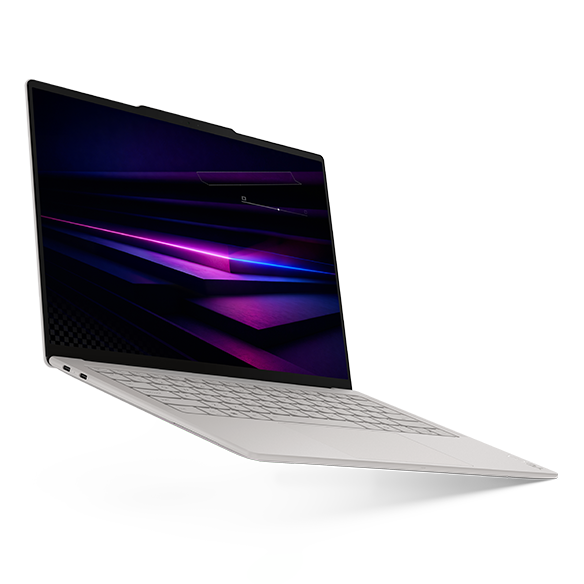
For the teaching role, the strongest argument is straightforward: choose it when reducing the computer’s carrying burden is useful and the classroom connection plan is already clear. An HDMI projector and a USB-A presentation receiver call for the appropriate adapter arrangement. Draw that arrangement before buying: which port provides power, which carries video and where the receiver connects. Include any hub in the bag calculation, rather than comparing the bare laptop with a competitor’s complete kit.
The word Yoga should not drive an assumption about handwriting. If the course requires writing equations or sketching live over a slide, this model’s touchscreen does not create pen capability. A separate institution-approved input device or a different device category may be the better answer. For a teaching assistant who prefers preparing diagrams in advance and presenting from a conventional keyboard, that distinction can be easy to accommodate. It simply belongs in the decision before the order is placed.
ASUS Zenbook S14 UX5406AA: best for direct classroom connections
The ASUS Zenbook S14 UX5406AA deserves an early place when the timetable involves unfamiliar lecture rooms. The US specification page lists 32GB memory and 1TB storage for the AA offering, alongside HDMI, USB-A and two Thunderbolt 4 ports. It also shows multiple processor and display entries across the S14 family. Match the AA column and the exact seller configuration; do not borrow the display or memory details of the older SA variant. ASUS’s US specification table.
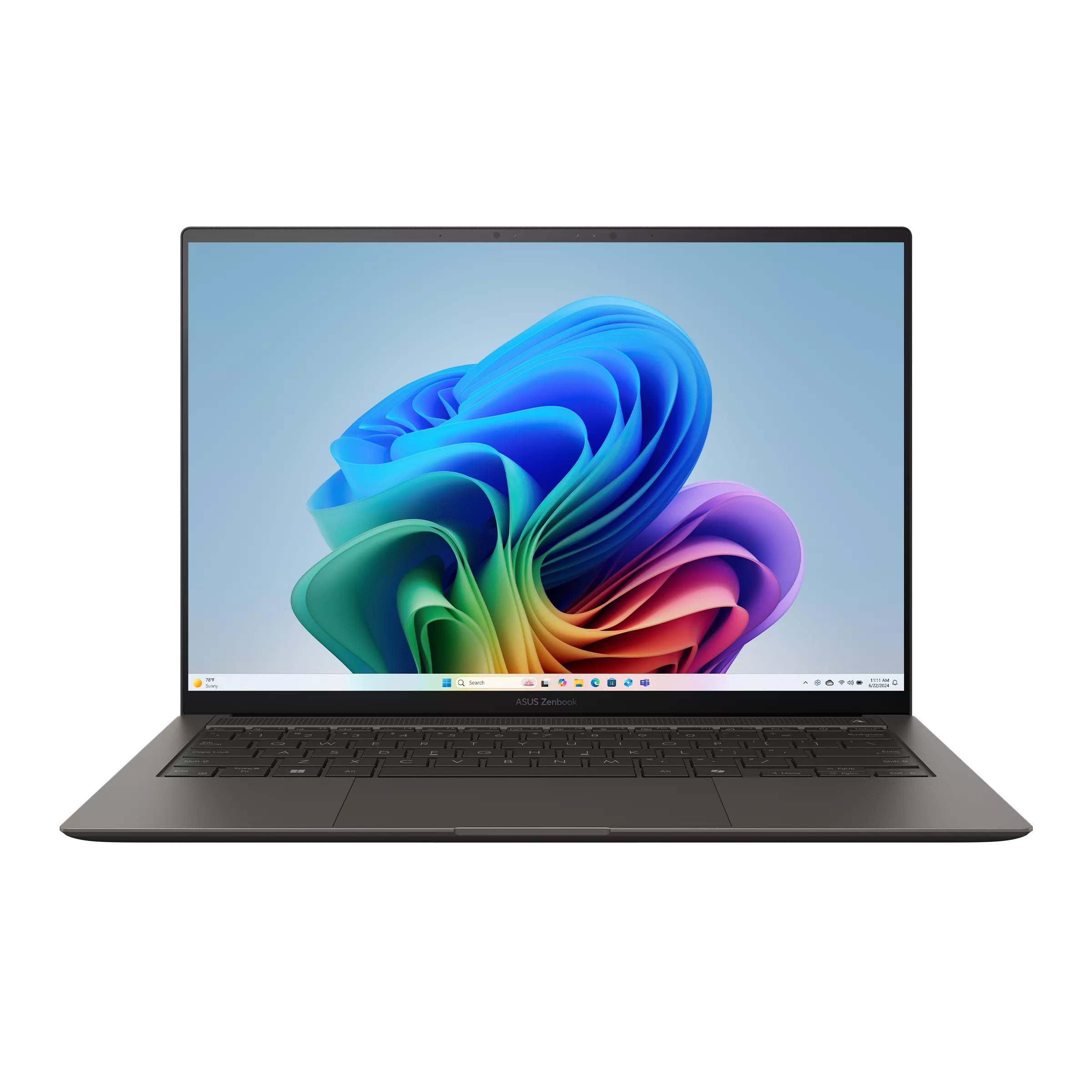
Direct HDMI and USB-A are useful when a teaching room already has a familiar cable and your presentation controller uses a conventional receiver. They can reduce the number of pieces you need to retrieve during a short changeover. That is a workflow advantage, not evidence that every projector will accept every output mode or that one laptop produces a better lecture. Carry the cable or adapter required by the actual room, and confirm the audience screen before students arrive.
Choose between this and the Yoga by comparing the finished teaching setup. Place the laptop, power supply, display adapter, receiver and audio accessory on the same list. Then decide whether native connections or the smaller published device-weight starting point matters more on your route. If both arrangements are rehearsed and dependable, keyboard layout, accessible scaling, warranty handling and the price of the selected configuration become legitimate deciding factors.
MacBook Air 13-inch M5: best for a supported Mac course workflow
The 2026 MacBook Air 13-inch M5 offers a 13.6-inch display, configurable 32GB unified memory and 1TB storage, MagSafe 3 charging and two Thunderbolt 4 ports. Apple lists a device weight of 1.23kg. HDMI and USB-A are not native connectors, so include the appropriate adapter in a classroom plan. These details refer to the 13-inch M5 model, not the larger Air or an earlier generation. Apple’s model-specific technical specifications.
The strongest reason to choose the Air is that the course already works well in the intended Mac environment. Confirm the exact marking application, reference tools, browser requirements and presentation features you need. Obtain a sample course file and test the complete round trip: open, comment, save, reopen elsewhere and return it through the university platform. A familiar file extension does not establish that every template, add-in or exported annotation behaves identically.
MagSafe gives charging a separate physical route from the two Thunderbolt ports when used with a suitable charger and cable. That can make a desk arrangement easier to understand, but it should not be turned into a universal claim about the best dock. For office hours, test the actual camera framing, microphone input and shared window. If the course’s essential application is available only in a department-supported Windows setup, treat that requirement as a gate rather than an inconvenience to resolve after purchase.
ThinkPad X1 Carbon Gen 14: best when departmental support is concrete
The ThinkPad X1 Carbon Gen 14 Aura Edition is worth a quotation when the university can specify and support a Windows teaching machine. Lenovo documents HDMI, one USB-A port and three Thunderbolt 4 ports for the platform. Its specification reference contains multiple processor, display and memory choices, so the product-family name does not identify a finished purchase. Use a named 32GB/1TB selection and obtain its complete machine type, panel and local support terms. Lenovo’s current X1 Carbon Gen 14 reference.
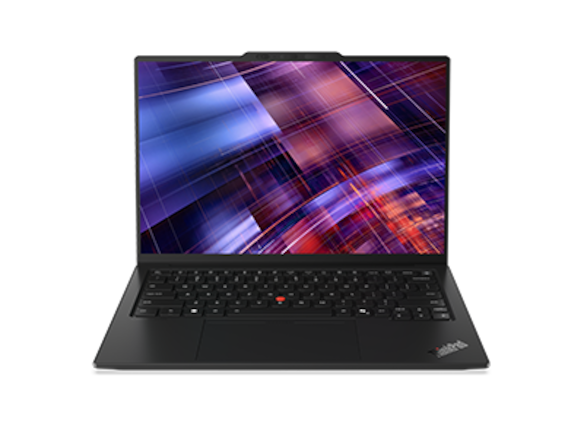
The buying reason should be the support arrangement you can actually use. Ask whether campus IT will configure the device, install the course software, help with room-display problems and provide a defined route if service is needed. A business product label alone does not create those services. A more expensive selection can be sensible when the institution’s arrangement saves substantial disruption; the same label is less persuasive when the owner receives no additional help.
For long marking sessions, examine the selected display at the text size used for comments and rubric cells. A high-resolution panel is not automatically the most comfortable choice, and a generic review of another screen option cannot settle that question. Bring a representative assignment, open a rubric beside it and check whether you can keep both legible without excessive scrolling. The result should influence the panel decision more directly than a specification chosen for unrelated creative work.
A worked teaching-day example: three rooms and one finished marking task
Consider an illustrative timetable: a morning seminar in a room with HDMI, afternoon office hours on Zoom and an evening marking session in the library. The seminar uses slides, a short embedded video and a USB-A presentation receiver. Office hours require sharing one worked example without exposing another student’s feedback. Marking combines a PDF submission, a rubric and the university’s grade-entry page. These are planning assumptions, not a report of a day tested on the laptops.
For the seminar, the S14 or a suitable X1 configuration offers a direct path for HDMI and the receiver. The Yoga and Air remain candidates when their adapter arrangement has been rehearsed. Before comparing processor upgrades, write down which display sees the slides and which shows private notes. Check the video’s audio route, the receiver’s response and whether the laptop remains connected to the intended power source. A setup that works while presenting the title slide may still reveal a problem when the first video starts.
For office hours, create a dedicated example file containing no real student information. Open it in the application you will share, select the intended window and ask a colleague to confirm what the remote viewer sees. Close unrelated submissions before the meeting. The purchase question is whether the complete routine is manageable on the chosen machine; the operating system’s general support for video calls is only a starting point. Zoom’s desktop requirements identify supported environments and the need for an appropriate connection, microphone and camera.
For marking, the useful result is a saved, recoverable set of comments attached to the correct submission. Finish one sample, close the software, reopen the returned file and check it on the platform students use. This catches a different class of problem from a presentation rehearsal. If all four candidates complete the three workflows satisfactorily, choose on the finished bag, display comfort, keyboard preference, verified support and total cost. The example creates a conditional recommendation rather than a universal winner.
Marking coursework: prioritize the complete document round trip
Marking places an unusual demand on a small laptop: the assistant repeatedly moves among the student’s argument, the marking criteria and the feedback being written. Start with a real-sized sample that contains tables, footnotes or equations where those are normal for the course. Position the submission and rubric together, then check whether your preferred scaling keeps both useful. A shop’s empty desktop tells you little about this arrangement.
Keep the marking process consistent across machines. Use the department’s approved application and version, save to the expected location and review the final return format. If the course accepts several submission formats, try each important one. Confirm how comments, highlights and inserted feedback appear after export. Where a teaching team shares marking, ask a colleague to reopen a sample using their ordinary environment. The question is whether feedback survives the workflow, not whether the file opens once.
Memory should follow that working session. A supported 16GB configuration may be sufficient for a modest document-and-browser routine; 32GB is a reasonable planning choice when teaching overlaps with a substantial research workspace or many concurrent applications. Neither capacity proves that a particular application will run well. Watch a representative session and compare the cost of the configuration you need. Avoid buying a higher processor tier while leaving the screen, input method or required software unresolved.
Students whose main workload is reading and drafting can continue with our thesis-writing and reading comparison. Teaching changes the shortlist when another person must see the output reliably or when feedback must travel through a shared institutional process.
Prepare the audience view and accessible materials before the class
A teacher’s screen and an audience screen have different purposes. Microsoft’s Presenter View guide explains choosing the display used for the presenter’s tools. Use that feature deliberately: verify which screen contains the notes, which shows the slide show and how you recover if the views are reversed. Rehearse with the presentation application and display arrangement you will use, rather than assuming the room will reproduce a previous setup.
Accessibility also belongs in preparation, not in a claim that a certain laptop makes a class accessible automatically. Microsoft’s PowerPoint accessibility guidance covers checks such as slide reading order, alternative text and contrast. Apply the relevant checks to the materials, review the result and use the university’s own accessibility process for course requirements. A larger display, clear scaling and a comfortable input arrangement may make that editing work easier, but the document still needs attention.
As an acceptance action, navigate one prepared teaching file using the methods that matter to you and your students. Verify that essential information is present in the shared material rather than only in your private notes. Confirm the approved captioning or other support arrangement with the institution when it is part of the course. This keeps the purchase decision connected to a concrete teaching responsibility without promising that an advertised hardware feature solves every accessibility need.
A practical acceptance check before the first teaching week
Create one small folder containing a slide deck, a sample submission, a rubric, an image and any short media clip used in the course. Use synthetic or permitted sample material. This folder gives each candidate the same job and makes it easier to explain a problem to IT. Keep a note of the application versions, operating system and important accessories used in the check.
Run the sequence in the order the class requires. Open the slides locally, connect the intended screen, set the presenter view, play the media and return to the main slide. Start a meeting, choose the microphone and share the example window. Open a sample assignment, add comments, save and return it through the expected platform. Finally, restart or sign out as appropriate and confirm that the required files and permissions remain available. Record the observed outcome rather than giving the laptop a made-up score.
Test one normal disruption as well. For example, disconnect and reconnect the display before class, reopen the presentation from the local folder or switch from the library network to the approved campus connection. The aim is to know the recovery steps before students are waiting. Do not change institutional security settings or install an unapproved utility just to make a purchase pass; ask the appropriate support team how the intended arrangement should work.
Mark the requirements as passed, unresolved or unnecessary for your assignment. An unresolved essential requirement stops the purchase decision. An unnecessary feature need not become a reason to spend more. This simple record can explain why a lightweight Yoga is the better fit for one assistant while direct connections or an institutional ThinkPad arrangement make another machine more appropriate for a colleague.
Compare the whole teaching purchase, then choose
Request an itemized quotation for the exact machine, appropriate power supply, display adapter or hub, presentation receiver and any necessary input accessory. Add required software and the support arrangement. Keep optional items separate: an accessory supplied by the department should not be purchased again merely because another retailer calls it part of a student bundle. Use local prices and eligibility terms checked at the time of purchase; this guide does not treat an old advertised discount as a current offer.
For carrying, add the parts that actually travel. A device-weight advantage may remain useful after the adapters are included, or it may become less important than a direct classroom connection. Make that comparison with your own selected items rather than borrowing accessory weights from unrelated reviews. Leave shared desk equipment out of a daily bag total when it stays in the office.
Choose the Yoga Slim 7i Ultra for an approved, light Windows teaching arrangement; the S14 when direct classroom connections are the clearest advantage; the Air when the complete Mac course workflow is established; or the X1 when the department’s specified configuration and support add practical value. Finish with the same question for every option: can this exact purchase carry the research work, deliver the class and return the feedback in the forms the institution requires?
Common questions
Do graduate teaching assistants need 32GB of memory?
Not automatically. Start with the approved teaching software and a representative working session. A modest document, rubric and browser routine may fit a supported 16GB configuration. The 32GB selections in this guide provide a consistent comparison basis and may suit a heavier combined research workspace. They are not measured minimum requirements for every course. Keep enough budget for the selected screen, necessary connections and support, rather than assuming memory capacity answers the whole purchase question.
Can the Yoga Slim 7i Ultra be used for handwritten teaching notes?
The 14IPH11 specification lists no pen support. Its touchscreen should not be treated as a substitute for a supported handwriting system. It can still suit a teaching assistant who types feedback, prepares diagrams in advance and presents from a conventional laptop. If live mathematical writing or drawing is essential, identify an approved separate input arrangement or compare a suitable pen-capable device before purchasing.
Is native HDMI necessary for teaching?
It depends on the room. Native HDMI can simplify an arrangement built around an HDMI display, while a suitable USB-C adapter can give another laptop a workable route. Verify the whole chain, including the cable, projector input, audio and charging. A laptop with a native connector still needs a presentation rehearsal. A laptop using an adapter is not automatically unsuitable when the tested arrangement meets the course requirements.
Can I choose a MacBook Air if the teaching team uses Windows?
Yes when the required applications, course files and return formats work in the intended Mac environment and the institution supports the arrangement. Test a representative file in both directions, including comments, presentation media and any required add-in. If an essential Windows-specific application or managed setup is mandatory, resolve that requirement before ordering. A browser-based platform alone does not prove that every associated teaching task is interchangeable.
Should I buy a more powerful laptop for Zoom office hours?
Begin with the current meeting requirements and the actual teaching routine. Verify the supported app and operating system, camera and microphone selection, connection and the material being shared. A more expensive processor does not establish that the room audio is clear or that the correct window is visible. If research tasks also require substantial computing resources, evaluate those separately using a representative workload, then choose a configuration that satisfies both roles.
Official sources & verification
Manufacturer documentation checked 11 November 2026. Availability, bundles and specifications vary by region and configuration.
- Lenovo PSREF — Yoga Slim 7 Ultra 14IPH11
Official model or software documentation checked for the specific claim linked in this guide. Regional configurations and institutional requirements should be confirmed separately. - ASUS US — Zenbook S14 UX5406 specifications
Official model or software documentation checked for the specific claim linked in this guide. Regional configurations and institutional requirements should be confirmed separately. - Apple Support — MacBook Air 13-inch M5 specifications
Official model or software documentation checked for the specific claim linked in this guide. Regional configurations and institutional requirements should be confirmed separately. - Lenovo PSREF — ThinkPad X1 Carbon Gen 14 Aura Edition
Official model or software documentation checked for the specific claim linked in this guide. Regional configurations and institutional requirements should be confirmed separately. - Microsoft Support — Use Presenter View in PowerPoint
Official model or software documentation checked for the specific claim linked in this guide. Regional configurations and institutional requirements should be confirmed separately. - Microsoft Support — Make PowerPoint presentations accessible
Official model or software documentation checked for the specific claim linked in this guide. Regional configurations and institutional requirements should be confirmed separately. - Zoom — Desktop system requirements
Official model or software documentation checked for the specific claim linked in this guide. Regional configurations and institutional requirements should be confirmed separately.